The world: objects, scenes and pins
The world part of the rednode package puts things into the running game: a prop, a person, a whole scene, or a labelled pin over a place. It can also animate the people you spawn and set the weather. EDGEbuilder, EDGE’s world builder, is built on it.
| On this page | Needs | Status |
|---|---|---|
| Your first object, Spawning, Moving, removing and watching | Codeware 1.14 or later | Passed in game |
| Objects far from V | Codeware; REDnode 0.58.0 or later | Passed in game with boxes. Heavier objects and people are untried |
| Scenes, and what’s near V | Codeware | Passed in game |
| Animations on people you spawn | Codeware; REDnode 0.67.3 or later. Your own workspots also need REDbridge and two permissions | Passed in game |
| Weather | REDnode 0.67.3 or later | Passed in game |
| The world’s own objects | REDnode 0.67.3 or later | Experimental. Passed in game on static objects; objects placed as entities can’t be picked yet |
| Pins | REDnode 0.59.1 or later. Styles, pins on objects and label need 0.62.4; goTo and pin sets 0.65.3 |
Passed in game |
New to calling the game? Read The game API first: every call here needs await.
Words used here: an entity is one object in the game’s world: a prop, a person, a car. A mesh is a 3D shape, a .mesh file. A template is an .ent file, the game’s recipe for an entity. A component is one part attached to an entity, such as a mesh or a light. See the glossary.
Your first object
This spawns a cardboard box three metres in front of V. Without Codeware the calls fail and say so, so add it to your manifest:
"requires": { "codeware": ">=1.14" }
import { api, game, world } from 'rednode';

// A place a few metres in front of V.
async function inFront(metres) {
  const player = await api.GetPlayer(game.instance);
  if (!player) throw new Error('No player: load a save first');
  const p = await player.GetWorldPosition();
  const f = await player.GetWorldForward();
  return { x: p.X + f.X * metres, y: p.Y + f.Y * metres, z: p.Z };
}

const { id } = await world.spawn({
  mesh: 'base\\environment\\decoration\\containers\\packaging\\cardboard_box\\cardboard_box_a_closed.mesh',
  position: await inFront(3),
});
console.log('Spawned', id.hash);
| Do | You should see |
|---|---|
| Load a save, stand somewhere open, and run the code (in a Node mod, or line by line in the Console) | A closed cardboard box on the ground three metres ahead of V, within about a quarter of a second |
Run await world.move(id, await inFront(6)) |
The box jumps to six metres ahead |
Run await world.remove(id) |
The box is gone |
| Switch your mod off instead | The box goes too: REDnode removes what a package spawned when it stops |
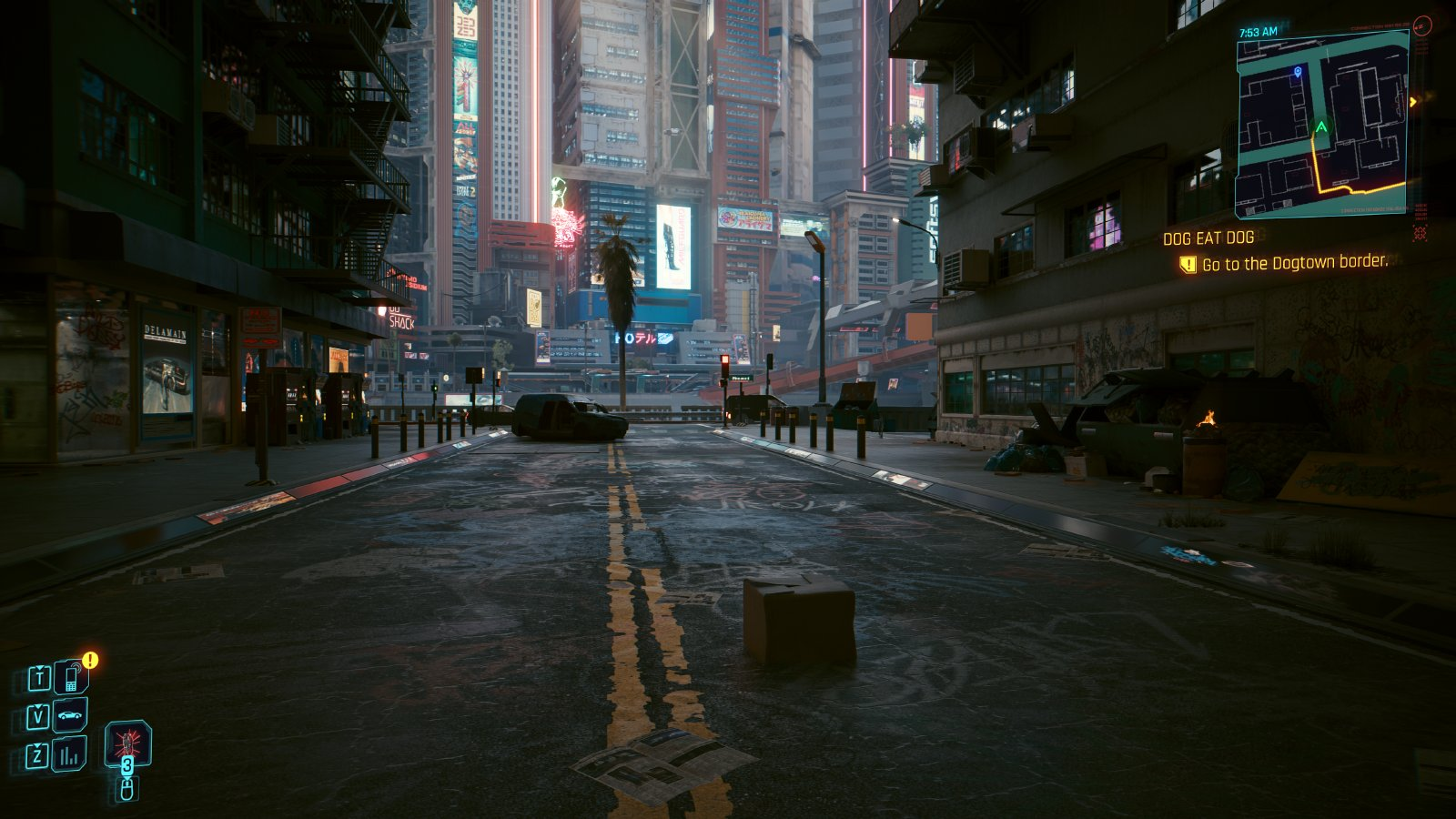
The inFront helper and the mesh path come from the World test sample in REDnode’s repo, which passed in game. The paths use double backslashes because \ is a special character in JavaScript text.
Spawning
world.spawn(options) makes one entity and gives back { id } once it is in the world. What it makes depends on the options:
| You give | You get |
|---|---|
mesh, with optional meshAppearance and scale |
A prop with just that mesh. The simplest form |
record: 'Character.CitizenRichFemale' |
A person, from a Character.* TweakDB record. They stand where placed and stay friendly to V. npc: false leaves the game’s own behaviour |
template, with optional components |
An entity from an .ent file, with extra parts you built with api.$new attached |
Every form takes:
| Option | Does |
|---|---|
position |
Where: { x, y, z } in the world’s metres |
yaw |
Which way it faces, in degrees around the vertical axis |
keep: true |
Keeps it in the save. It comes back about 8 seconds after that save loads; the delay is expected |
wait: false |
Gives the id back as soon as the entity is made, without waiting for it to be in the world. For an object far from V, or one still loading |
label: 'Name' |
Puts a pin on it that follows it |
workspot: '<path>.workspot' |
For a person: gives them one of the game’s workspots to play. See Animations on people you spawn |
If the object isn’t in the world in time, the call fails, and REDnode removes the object first, so a failed spawn leaves nothing behind.
A person, and a template with a mesh attached:
await world.spawn({ record: 'Character.CitizenRichFemale', position: await inFront(2) });

const mesh = await api.$new('entMeshComponent', {
  name: 'my_marker',
  mesh: 'base\\environment\\ld_kit\\marker.mesh',
  meshAppearance: 'default',
});
await world.spawn({
  template: 'base\\gameplay\\loot\\containers\\common_suitcases\\appearances\\suitcase_small_placeholder.ent',
  position: await inFront(4),
  components: [mesh],
});
Moving, removing and watching
| Call | Does |
|---|---|
world.move(id, position, orientation?, yaw?) |
Moves it, and optionally turns it: yaw in degrees, or a full orientation |
world.remove(id) |
Removes it |
world.spawned() |
Lists what your package spawned, each with attached: whether it’s in the world now |
world.entity(id) |
The entity as a game object, to call its methods through api. null once it’s gone |
world.on(name, fn) |
Runs your function when an entity is created (Entity/Initialize), enters the world (Entity/AfterAttach) or leaves it (Entity/Detach) |
world.watch(id) |
Starts those events for an entity your package didn’t spawn |
world.available() |
True when Codeware is installed and a save is loaded |
Objects far from V
Most mods never need this. It is for editors whose camera leaves V.
The game normally brings a spawned object into the world only while V is around. An object 300 m away never shows, and wait: false only holds on to it until V gets near. To have it there anyway, ask the game to keep it spawned:
const { id } = await world.spawn({
  mesh: 'base\\environment\\ld_kit\\marker.mesh',
  position: { x: p.x + 300, y: p.y, z: p.z }, // p: V's position
  alwaysSpawned: true,
  wait: false,
});
In REDnode’s test it worked at 300 m, 1 km and 4 km, and the objects stayed with V 5 km away. 200 boxes took about 46 ms each to ask for, with a steady frame rate. Heavier objects and people are untested.
| Good to know | |
|---|---|
| It stays for the whole session | Wherever V goes, until you remove it. Remove what you no longer show |
| Scenes | world.load(scene, { wait: false, alwaysSpawned: true }) does it for every object of a scene |
| A camera you fly with | Needs the option too, if V can be far from it |
Scenes, and what’s near V
| Call | Does |
|---|---|
world.load(scene, options) |
Loads an EDGEbuilder scene into the running game: its meshes, entities and people, but not lights yet. Pass a .scene.json file’s path in your package, or the scene itself. Loading a scene of the same name again replaces it. It gives back what it spawned and what it skipped, with the reason |
world.unload(name) |
Removes what world.load spawned for that scene |
world.near({ radius, files, uses }) |
The entities near V, nearest first (within 15 m unless you give radius), with each one’s class, distance and appearance. With files: true, the files each one uses; with uses, only the entities that use one of the files you name |
world.files(entity) |
The files one entity uses: its template and everything its components name, as path hashes |
world.onRespawn(fn) |
Tells you when an archive swap made REDnode spawn one of your entities again, with its old and new id |
const r = await world.load('scenes/my_alley.scene.json');
console.log(r.spawned.length, 'spawned', r.skipped);
// later
await world.unload(r.name);
Try it in the Console: stand near some people or cars and type await world.near({ radius: 10 }). You should see a list with each entity’s class and its distance in metres.
The World objects test sample in REDnode’s repo has a button for each of these.
Animations on people you spawn
A workspot is the game’s file (.workspot) that tells a person what to do in one spot: stand with arms crossed, lean on a wall, sit. Give one to a person when you spawn them, then play it. This uses inFront from Your first object:
import { world } from 'rednode';

const { id } = await world.spawn({
  record: 'Character.trauma_team_paramedic',
  position: await inFront(3),
  workspot: 'base\\workspots\\common\\ground\\generic__stand_ground_arms_crossed__stand_around__02.workspot',
});
const r = await world.useWorkspot(id);
console.log(r.started ? 'Playing' : `Not started: ${r.why}`);
| Do | You should see |
|---|---|
| Load a save, stand somewhere open, outside combat, and run the code | A Trauma Team paramedic 3 m ahead, who crosses their arms and holds the pose, and Playing in the log |
Run await world.workspotState(id) |
inWorkspot true, and the workspot’s path |
Run await world.stopWorkspot(id) |
The paramedic leaves the pose |
| Call | Does |
|---|---|
world.spawn({ record, workspot }) |
Spawns a person who carries the workspot |
world.useWorkspot(id, { workspot?, at?, entry? }) |
Plays it, where the person stands (at: "here", the default) or at the workspot’s own place ("workspot"). Another workspot spawns the person again in the same place, carrying it, and gives back the new id. entry jumps to one animation by name, at once |
world.workspotState(id) |
Whether the person is in the workspot, which one, and whether it is starting, ending or playing |
world.stopWorkspot(id) |
Ends it, quickly by default. { fast: false } lets the game end it its own way |
| Good to know | |
|---|---|
| The game’s workspots | Gameplay workspots, the poses and loops people use in the streets, loop. A quest’s workspot plays once, briefly, after a moment in a T pose. To loop a quest’s animation, write your own workspot |
| Bodies | A workspot made for a man’s body plays only on one, and the other way round. When one doesn’t start within 2 seconds, why says to check the path and the body |
| Assistants | Claude Code and REDagent can do the same through REDnode’s MCP server: workspot on world_spawn, then the world_animate tool. Both ask you first |
Your own workspots
For directing a scene, as EDGEdir does: write a workspot that holds the animations you choose, from any of the game’s animation sets, quest ones too. REDnode writes the file with REDbridge and swaps it into the running game with REDswap, so your package needs the bridge and archives permissions.
import { world } from 'rednode';

const SET = 'base\\animations\\npc\\generic_characters\\male_average\\interactive_scene\\';
const ws = await world.writeWorkspot('director', {
  clips: [
    { set: SET + 'generic_male_average__stand__2h_on_sides__01.anims', anim: 'stand__2h_on_sides__01', name: 'stand' },
    { set: SET + 'generic_male_average__stand__arms_crossed_front__01.anims', anim: 'stand__arms_crossed_front__01', name: 'crossed' },
  ],
});
const { id } = await world.spawn({ record: 'Character.trauma_team_paramedic', position: await inFront(3), workspot: ws.path });
await world.useWorkspot(id);           // starts with the first clip, "stand"
await world.jumpWorkspot(id, 'crossed');
| Call | Does |
|---|---|
world.writeWorkspot(name, { clips, rig?, swap? }) |
Writes a workspot with your clips and swaps it into the running game. Each clip is an animation set’s path (set), the animation’s name in it (anim) and a name to jump to it by. Each loops until you move on; loop: false plays it once and goes on to the next. rig is the body the clips are for: a man’s by default, so a woman’s clips need woman_base.rig and a woman. Gives back the workspot’s path and its entries |
world.jumpWorkspot(id, name) |
Moves the person to another clip at once, with a smooth blend. Gives false when the person isn’t playing the workspot yet: call world.useWorkspot first |
| Good to know | |
|---|---|
| Time | The first write took about 30 seconds in REDnode’s test, with REDbridge’s start. Write before the scene, not during it |
| A T pose, once | Each person shows a brief T pose the first time they play a written workspot. Start it while they are out of view |
| What a clip can’t do | A clip has no in or out point, speed or repeat count. To cut one short, jump to the next on a timer of your own |
Weather
Set the weather and hold it, as a quest does, then give it back:
import { world } from 'rednode';

const now = await world.weather();                          // the weather now, and every state
console.log(now.states);
await world.setWeather('24h_weather_rain', { blend: 10 });  // rain, coming in over 10 s, held
// later
await world.resetWeather();                                 // back to the weather from before
Try it in the Console: stand V outdoors and type await world.setWeather('24h_weather_rain', { blend: 10 }). The rain comes in over a few seconds. Then type await world.resetWeather(): over about 10 seconds the sky goes back to what it was.
| Call | Does |
|---|---|
world.weather() |
The weather now, whether the game’s cycle runs it or someone holds it (and who), and every weather state the world has |
world.setWeather(state, { blend? }) |
Sets a weather and holds it until it is given back. state is one of the world’s states, such as 24h_weather_rain, or a WeatherPresets record, such as "WeatherPresets.Fog". blend is how long the change takes, in seconds |
world.resetWeather() |
Gives it back: blends over 10 seconds to the weather from before your first set, then lets the game’s cycle carry on. If a quest held the weather, it goes back to the quest |
world.resetWeather({ restore: false }) |
Only lets go. The weather then stays as it is until the game’s cycle moves on, which can take minutes |
| Good to know | |
|---|---|
| When your mod stops | REDnode gives the weather back the same way. The Console is a package too: closing it gives back what you set from it |
| Saves | A save made while REDnode held the weather doesn’t stay stuck: REDnode lets go when that save loads |
| Needs | No permission. V must be in the world |
| Assistants | world_weather reads the weather without asking; world_weather_set sets it or gives it back, and asks first |
| How | Game 2.5 has no script call for the weather. REDnode does what the game’s own quest weather does |
The world’s own objects
Experimental, for editors such as EDGEbuilder. Everything above is about what your package spawns. Most of the game’s own world (buildings, benches and bins, decals on the ground, lights) isn’t made of entities but of nodes, placed in sectors: the pieces the world streams in as V moves. world.pick finds those nodes along the camera’s view.
import { world } from 'rednode';

await world.nodeRegistry();                  // starts the record: load a save after this
// ... once the save has loaded, aim the camera at a bench
const { hits } = await world.pick();
console.log(hits[0]?.kind, hits[0]?.id);
await world.highlight(hits[0].id);           // the game's own outline on it
await world.setVisible(hits[0].id, false);   // hidden for the session
| Call | Does |
|---|---|
world.nodeRegistry() |
Starts REDnode’s record of the world’s nodes and says how many it knows. Only sectors that load after the first call are known, so load a save after it |
world.pick({ max?, limit?, kinds? }) |
The nodes along the camera’s view, what you aim at first. Each has its kind, its sector and node, and an id that stays the same each time its sector loads |
world.node(id) |
One node again, or null when its sector isn’t loaded |
world.highlight(id), world.highlight(id, null) |
Outlines a node with the game’s own highlight, or takes the outline off |
world.setVisible(id, false), world.setVisible(id, true) |
Hides a node for the session, even when it streams out and back in, or shows it again |
| Good to know | |
|---|---|
| What passed on game 2.5 | Picking, outlining and hiding a bench, and outlining a ground decal. Outlines work on meshes, decals and bent meshes; other kinds answer false and say why |
| Not yet | Objects placed as entities, such as street lamps and traffic lights, can’t be picked yet. A field of copies (instanced meshes, foliage) shares one box |
| Cost | A pick takes about 25 ms of the game’s time, the first one after a load up to 0.8 s. Pick on a click, not every frame |
| When your mod stops | What it hid shows again, and its outlines go |
| Only when used | Nothing of it runs until a mod calls it |
| Credit | A port of RED Hot Tools’ world node registry (MIT licence) to game 2.5 |
Pins
A pin is a glowing post with a label: a title, a line of text and the distance. It marks a place or an object so it can be found from far away. REDnode’s overlay draws pins on top of the game; they change nothing in the game itself and need no Codeware.
import { game, world } from 'rednode';

const here = await game.player.position();
const id = await world.pin({ at: here, title: 'Drop', text: 'the crate by the stairs' });
| Do | You should see |
|---|---|
| Run the code, then walk away and turn round | A cyan post where V stood, with a label: Drop, the text, and the distance in metres |
| Look away from it | The label waits at the edge of the screen with an arrow pointing the way to turn |
| Open the map or photo mode | The pin hides |
Run await world.unpin(id) |
The pin is gone |
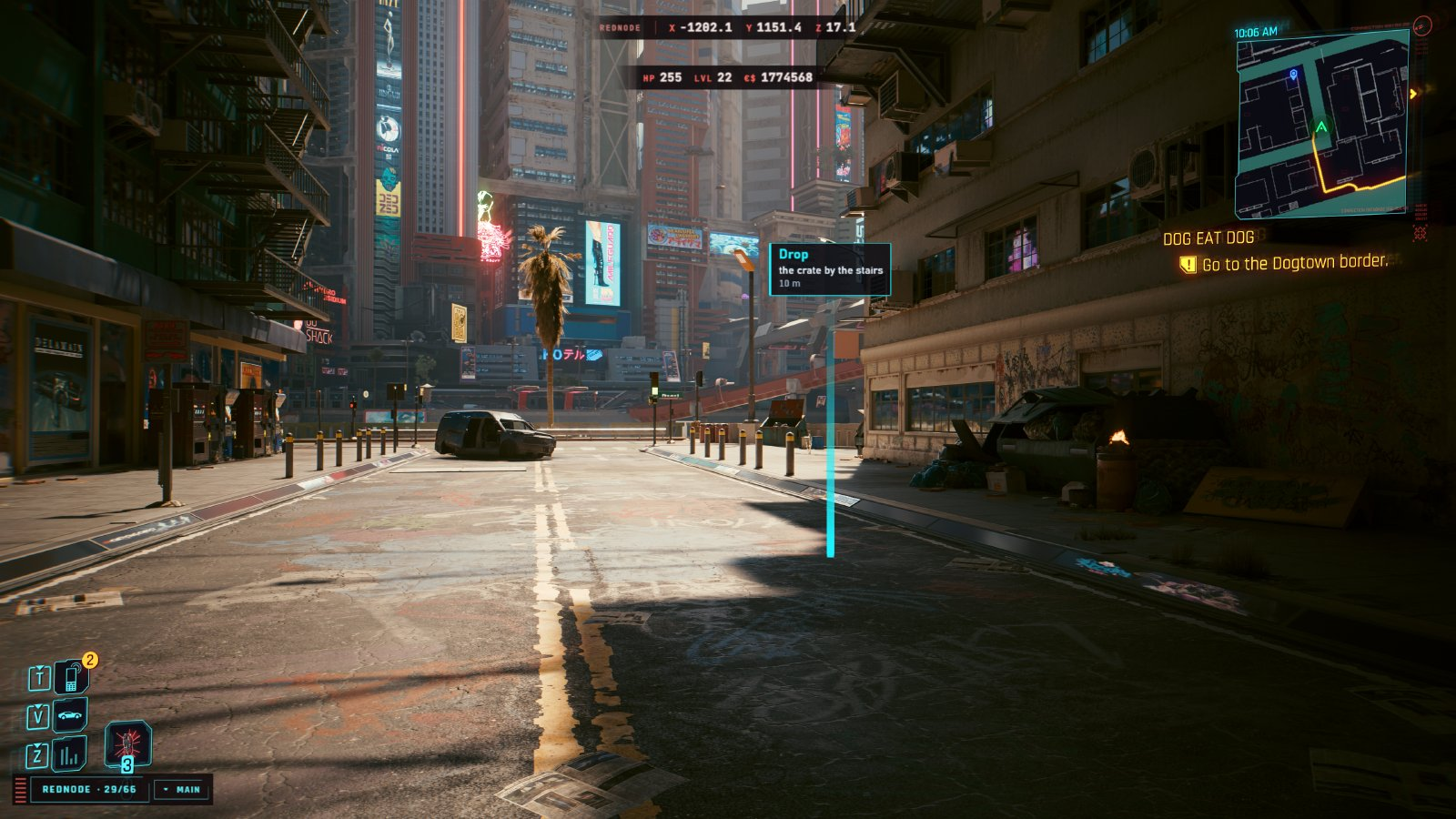
A pin can follow an object: give at the id that world.spawn returned, or use label when you spawn.
const { id: judy } = await world.spawn({ record: 'Character.Judy', position: here });
await world.pin({ at: judy, title: 'Judy' });

// The same in one call:
await world.spawn({ record: 'Character.Judy', position: here, label: 'Judy' });
A style sets how a pin looks:
await world.pin({ at: here, title: 'Far', style: { color: '#ff4fd8', scale: 'screen' } });
await world.pinStyle({ scale: 'screen', color: '#ffcf3f' }); // every pin of your package
scale |
Size | Behind a wall |
|---|---|---|
"fit" (the default) |
Full size up to 15 m, then shrinks with distance down to a smallest size | Still drawn, dimmed |
"world" |
A real size in the world: small when far | Hidden |
"screen" |
The same size at any distance | Shown |
A style can also set color (#rrggbb), font, titleSize, textSize and pinHeight (the post’s height in metres, 3 if left out).
| Call | Does |
|---|---|
world.pin({ at, title, text?, style? }) |
Drops a pin and gives back its number |
world.unpin(id), world.clearPins() |
Removes one pin, or all of your package’s |
world.pins() |
Lists your package’s pins, each with its distance, its set and whether it is hidden |
world.pinStyle(style), world.pinStyle(id, style) |
Restyles all of your package’s pins, or one |
world.goTo(id) |
Moves V beside a pin, about 2.5 m from it, facing it |
world.pinSet.save(file), .load(file), .show(name, on), .remove(name) |
Keeps your pins in a .pins.json file, the same kind of file the Pins window opens. A file name without a folder is in your package’s data folder |
| Good to know | |
|---|---|
| When pins go | Your package’s pins go when it stops, and every pin goes when the game session ends |
| Assistants | Claude Code and REDagent can drop pins too, through REDnode’s MCP server. Pins only draw, so they don’t ask first |
| Players’ pins | The Pins window lists every pin, yours included, and keeps the player’s own sets in .pins.json files |
The developer’s notes and test results are on REDnode’s World API page.