Arranging a scene
Arrange is where single objects become a scene: a table with its chairs, a row of crates, a barricade you build once and copy down the street. From EDGEbuilder 0.5.8 you can work on several objects at once, group them, copy them and undo your changes. It all passed its in-game test on 2026-11-02.
Saving named scenes is the other half of Arrange and comes next. See Scenes and baking.
Keys need REDnode 0.52.0 or later. In the game, Ctrl+Z, Ctrl+Y, Ctrl+C, Ctrl+X, Ctrl+V and Esc reach EDGEbuilder only from REDnode 0.52.0. The newest REDnode release has them. With an older REDnode, use the buttons on the Scene tab, and a right-click instead of Esc to cancel.
Selecting several objects
Switch Edit on first.
| Do | Selects |
|---|---|
| Click an object | That object alone (or its whole group: see Groups) |
| Ctrl+click an object | Adds it to the selection. Ctrl+click it again to take it out |
| Shift+drag | A dashed yellow box. When you let go, everything inside it is selected |
| Click empty ground | Nothing |
Ctrl+click works in the Scene tab’s list too.
Each selected object gets the game’s outline and a thin box. The gizmo sits at the middle of the selection. The Scene tab’s count says how many are selected, for example 5 objects, 1 group; 3 selected.
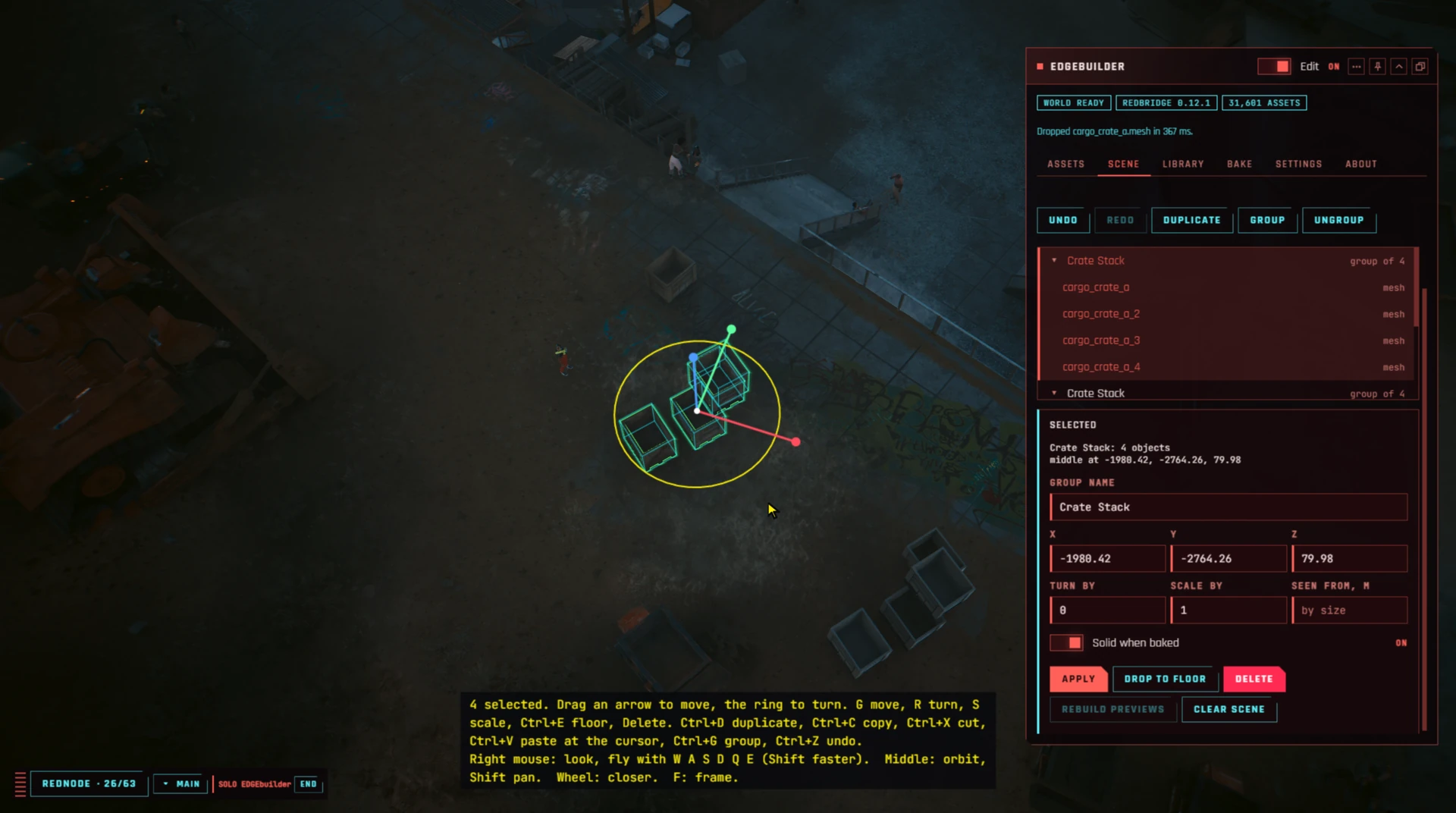
Moving several at once
Everything on Positioning objects works on the whole selection:
- the gizmo’s arrows move them all, and the ring turns them all around their middle, so the outer ones swing round;
- G, R and S, with X, Y, Z, typed numbers and Ctrl snapping, act on all of them. S scales them from their middle: they spread out and grow;
- Delete and Drop to floor act on each object.
With several objects selected, the Selected panel shows their middle in X, Y and Z, and the last two fields become Turn by and Scale by. Apply moves the middle to the X, Y and Z you typed, turns them around it by Turn by degrees, and scales them from it by Scale by. Scale by is hidden when the selection holds an entity, since entities don’t scale.
Groups
A group keeps objects together, so one click picks them all.
| Key or button | Does |
|---|---|
| Ctrl+G, or Group | Groups the selection. The message says, for example, “Grouped 3 objects as Group 1” |
| Ctrl+Shift+G, or Ungroup | Opens the selected group. Its objects stay where they are, on their own |
| A click on an object in a group | Selects the whole group |
| Alt+click | Selects just that object, out of its group |
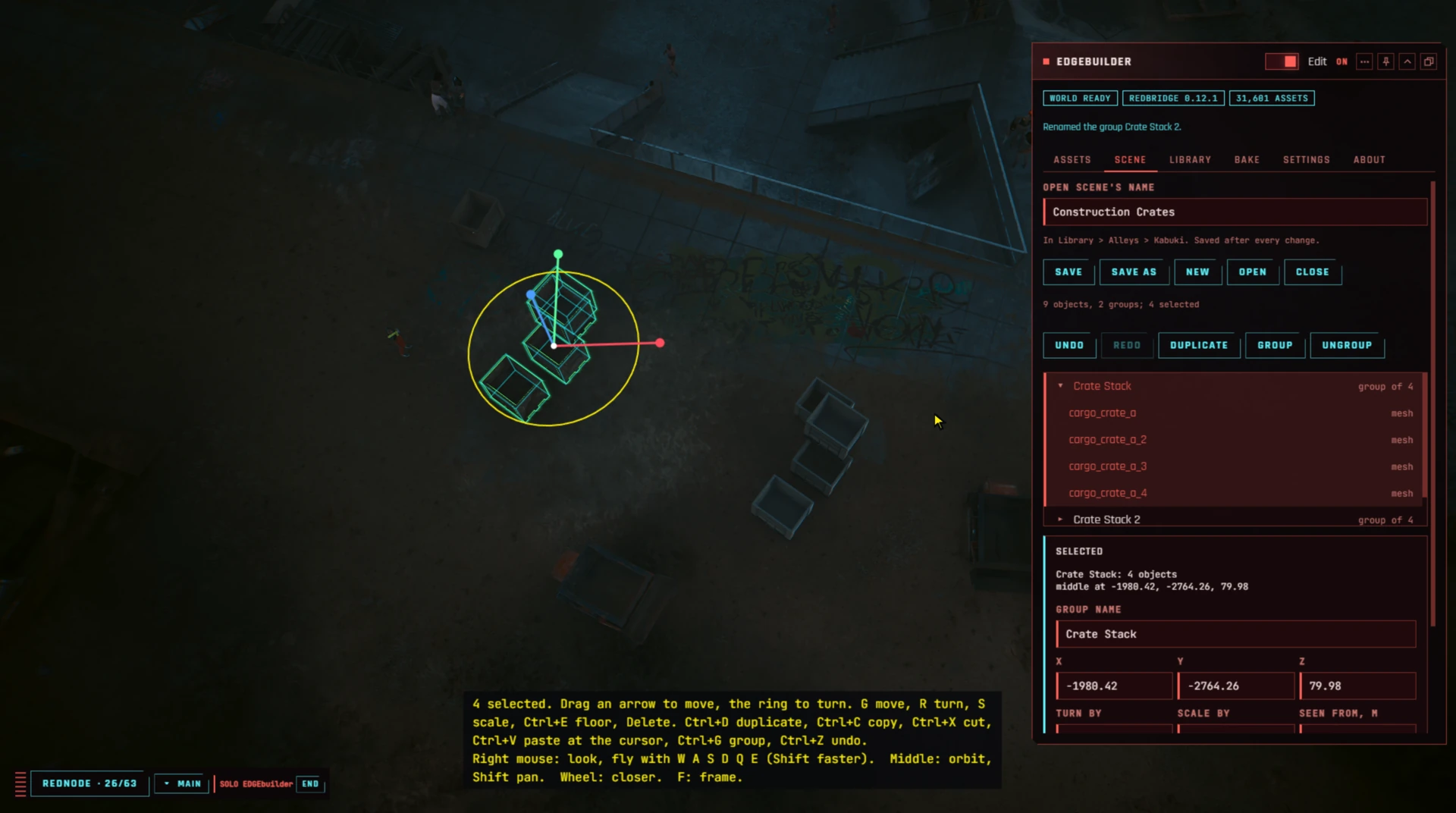
The Scene tab’s list is a tree: each group shows group of N at its right, and its objects under it. The arrow beside a group folds them away and back. Groups can hold other groups.
With a group selected, the Selected panel has a Group name field. Type a name and press Enter.
Duplicate
Ctrl+D, or Duplicate on the Scene tab, copies the selection, groups and all. With Edit on, the copy follows the mouse; a click puts it down. Esc or a right-click takes it back, and nothing is copied. With Edit off, the copy lands beside the original.
Copy, cut and paste
| Key | Does |
|---|---|
| Ctrl+C | Copies the selection, groups included. The message says “Copied N objects” |
| Ctrl+X | Cuts it: copies it, then deletes it. Ctrl+Z puts it back |
| Ctrl+V | Pastes it where the cursor points, standing on the surface there, and selects it |
Paste as often as you like. What you copied stays until EDGEbuilder stops, even after the originals are deleted. A pasted group arrives as a new group with the same name.
Where Ctrl+V puts the copy:
| The copy lands | |
|---|---|
| Cursor over the world | On the surface under the cursor |
| Cursor over EDGEbuilder’s panel | Where the camera looks |
| Edit off | Where Drop where I look would put it |
Undo and redo
| Key or button | Does |
|---|---|
| Ctrl+Z, or Undo | Takes back the last change |
| Ctrl+Y or Ctrl+Shift+Z, or Redo | Does it again |
Undo covers the last 100 changes: drops, moves, turns, scales, Apply, Drop to floor, deletes, copies and pastes, grouping, renaming and Clear scene. The message says what came back or went. The history lasts while EDGEbuilder runs; it starts empty after the game restarts.
When you type in a field of the Selected panel, Enter applies the number and leaves the field. Ctrl+Z then undoes the change to the object, not the text in the field.
When EDGEbuilder is busy
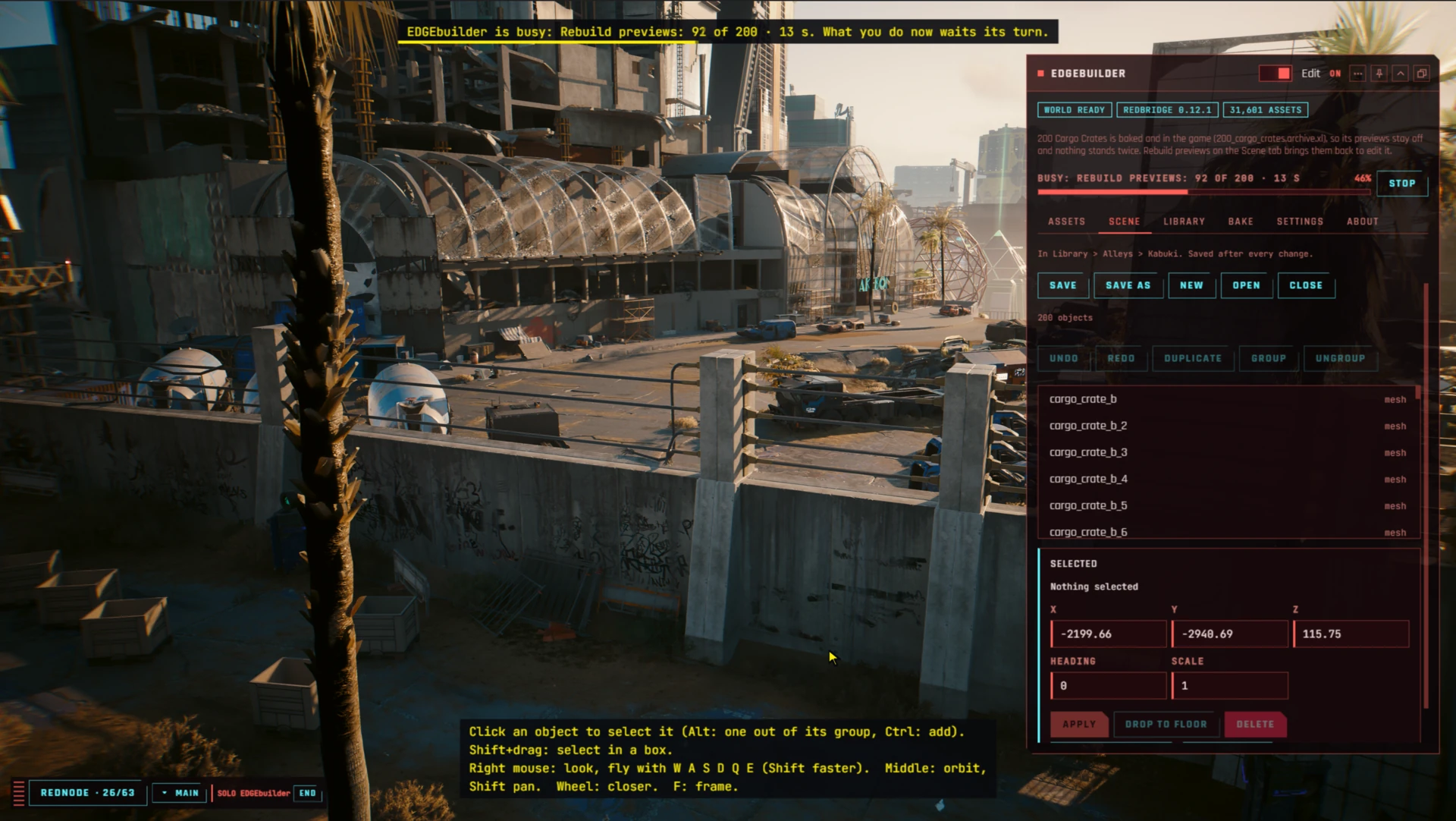
Some changes take a while, such as an undo or Rebuild previews that puts back many objects. When a change runs for more than half a second, a busy bar shows what it is, how far it has got and for how long, for example Rebuild previews: 3 of 12 · 2 s. With Edit on, it shows at the top of the view too.
Clicks you make meanwhile wait their turn. The bar counts them (1 more waiting), and they run when the change ends.
Stop places no more previews for that change. The changes waiting behind it still run.
Objects far away
Undo, Redo and Rebuild previews place every object, near or far: from 0.6.7, a scene’s objects are in the world wherever V is, so you can fly to any of them and work there.
All the arranging keys
| Key or mouse | Does |
|---|---|
| Ctrl+A | Select the whole scene |
| Ctrl+click | Add to or take out of the selection |
| Shift+drag | Select everything in a box |
| Alt+click | One object out of a group |
| Ctrl+G, Ctrl+Shift+G | Group, ungroup |
| Ctrl+D | Duplicate; the copy follows the mouse until a click |
| Ctrl+C, Ctrl+X, Ctrl+V | Copy, cut, paste under the cursor |
| Ctrl+Z, Ctrl+Y (or Ctrl+Shift+Z) | Undo, redo |
| Esc or a right-click | Cancels a drag, a Drop at click, a box or a copy that follows the mouse |
With nothing in progress, Esc leaves REDnode’s interactive mode as usual.
Try it: a barricade down the street
- Drop a crate, then press Ctrl+D twice to put two more beside it.
- Hold Shift and drag a box around the three. The Scene tab says 3 selected.
- Press Ctrl+G. In Group name, type
Barricadeand press Enter. - In the Scene tab’s list, click the arrow beside Barricade to fold its crates away, and again to show them.
- Alt+click the middle crate and press Delete. Only that one goes. Ctrl+Z puts it back.
- Click the barricade and press Ctrl+X. It’s gone, and copied.
- Fly down the street, point the cursor at the road and press Ctrl+V. Press Ctrl+V again further on. Now there are two barricades.
- Press Ctrl+Z three times: the two pastes and the cut come undone, and the barricade is back where it started.