The Mods view and the EDGEdeck page
EDGEdeck shows your mods in two places. The Mods view in VS Code’s sidebar is the compact everyday list. The EDGEdeck page is a wide table in the editor area for bigger jobs: searching, filtering, sorting by size. Both show the same library, and a change in one appears in the other.
The Mods view
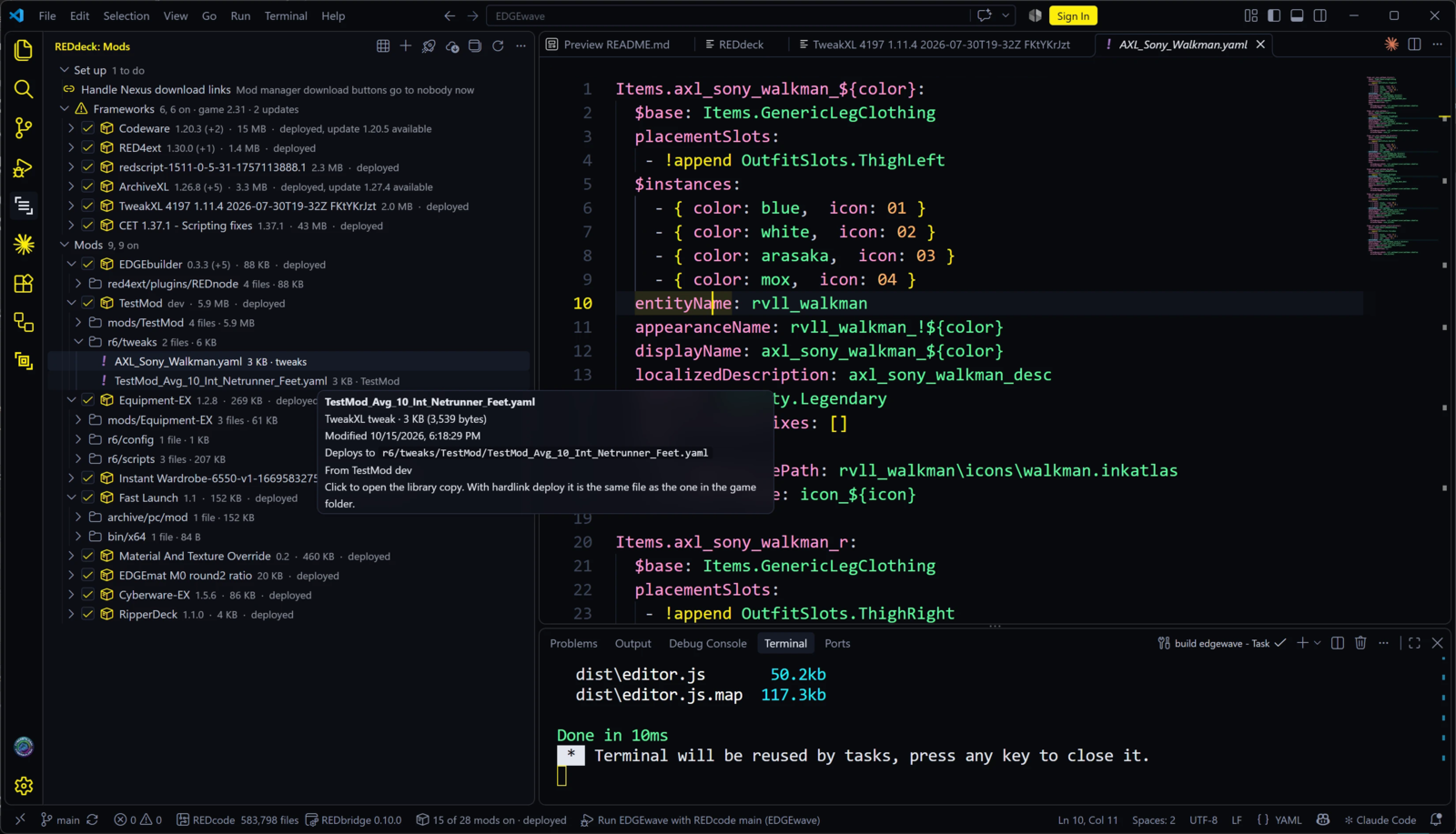
The list has these groups:
| Group | Holds |
|---|---|
| Set up | Steps still to do. Disappears when there are none. See Install and set up |
| Frameworks | RED4ext, Cyber Engine Tweaks, redscript, ArchiveXL, TweakXL, Codeware, Audioware, input_loader and mod_settings. Pinned at the top because most mods need them. The header shows the game version, for example 3, 3 on · game 2.31. See Frameworks and game patches |
| Your sections | Sections you make on the EDGEdeck page, between Frameworks and Mods. They only group the list. See Sections |
| Mods | Everything else, in order. Within a group, the mod higher up wins a conflict. See Order: who wins |
A mod’s row
- The checkbox turns the mod on or off. Nothing changes in the game until you deploy.
- After the name: the version, how many other versions of the mod the library holds, its size, and its status.
- Hover the row for the move-up and move-down buttons and Switch version…. Moving a mod up makes it win a conflict against the mod shown above it.
- Hover anything for a card with its size, dates, where it deploys and where it came from.
- Expand a mod to see the folders it deploys into (such as
archive/pc/modor a CET mod folder) and the files in each. Click a file to open it in the editor. - Click the name to open the mod’s detail panel.
- Right-click for everything else: Details, Open on Nexus Mods, Reveal in File Explorer (the mod’s library copy), Reveal in Game Folder (where it sits in the game), Remove, and Add to Project when a REDcode project is open. Folders and files have Reveal in Game Folder and Add to Project too.
What the status means
| Status | Meaning | What to do |
|---|---|---|
deployed |
On, and its files are in the game | Nothing |
not deployed yet |
On, but you haven’t deployed since turning it on | Deploy |
off |
Off, and not in the game | Nothing |
off, still deployed |
You turned it off, but its files are still in the game | Deploy to take them out |
changed in game folder |
Something outside EDGEdeck changed one of its deployed files | Deploy; EDGEdeck asks what to keep. See Deploying |
changed, deploy again |
Its files in the game no longer match the library | Deploy |
update 1.2 available |
Nexus has a newer version | Click it to update. See Nexus Mods |
loses 3 archive files |
Another mod overrides 3 resources inside its archives | Check Conflicts if that’s not what you want |
overrides 2 archive files |
It overrides 2 resources inside another mod’s archives | Usually intended |
The view’s buttons
The title bar has Open EDGEdeck, Add mod, Deploy, Nexus: check for updates, Switch loadout and Refresh. The view’s header names the active loadout. The ... menu holds the rest: Show conflicts, Show pending changes, Import from Vortex, Undo deploy, Nexus sign in, Nexus: add from a link, Add from REDcode project, Get REDbridge, Pick the game folder, Open library folder, Show log, Switch loadout, Save as new loadout, Export the active loadout and Import a loadout.
The detail panel
Click a mod’s name for its detail panel, which opens in the editor area.
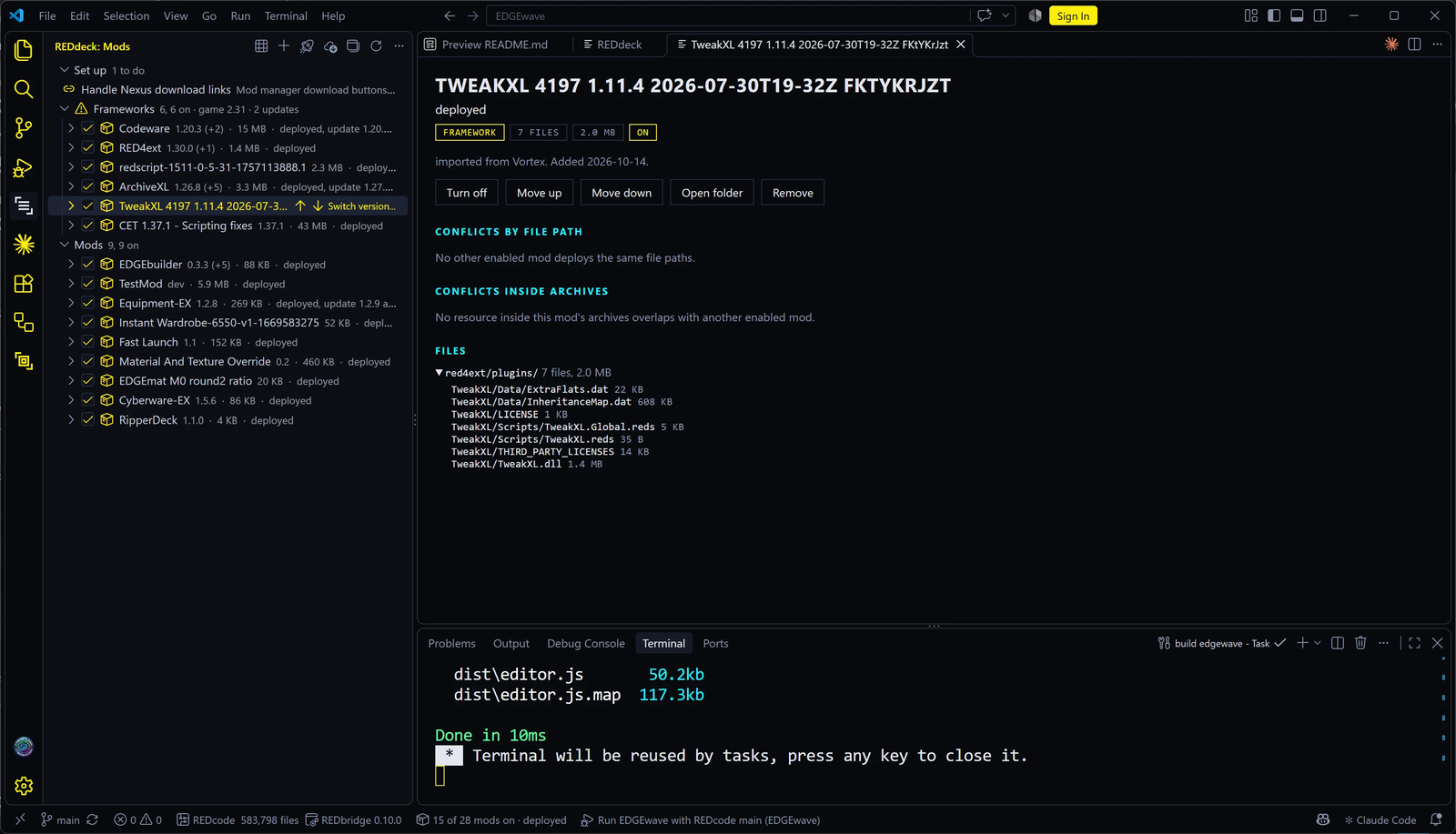
It shows the files the mod deploys and their sizes, folder by folder, and its conflicts, both by file path and inside archives. Its buttons turn the mod on, move it, open its folder, open it on Nexus, update it and remove it.
The EDGEdeck page
Open EDGEdeck, the first button in the view’s title bar, opens the wide table.
| Part | What it does |
|---|---|
| Columns | On/off, name, version, kinds, size, status, and Actions: icon buttons for Details, Move up, Move down, Section, Open folder, Open on Nexus (for a mod from Nexus) and Remove. Drag a column heading’s edge to resize it |
| Search | Matches name, version, kind and status |
| Facet chips | Narrow the list to On, Off, Deployed, Not deployed, Needs deploy, Changed in game folder, Conflicts or Update available. Each shows its count |
| Largest first | Sorts every mod by size, across every section |
| Sections | Frameworks, sections of your own, and Mods, each in its own box. See Sections below |
| Loadout | A dropdown of your loadouts. Pick one that isn’t active to edit it here without touching the game; Make active switches to it. Buttons beside it make, rename, export, import and delete loadouts |
| The version cell | A dropdown when the library holds several versions of a mod, or Nexus has a newer one. Pick a version to switch to it, or Get x.y from Nexus |
| Status links | When a deploy is waiting for a mod, its status opens the list of files the next deploy will add, replace, put back or remove for it, and why |
| Toolbar | Add mod, Check updates (or Nexus sign in), Conflicts with a count, Undo deploy, the number of changes waiting, and Deploy |
| Footer | The library folder and whether deploy uses hardlinks or copies, the last deploy, disk use, and which REDbridge is running |
The page remembers your search and filters.
Sections
Sections let you group a long list your way: “Visuals”, “Gameplay”, “Testing”, whatever helps you find things. Frameworks and Mods are built in; your own sections sit between them, on the EDGEdeck page and in the Mods view.
| To… | Do this on the EDGEdeck page |
|---|---|
| Make a section | Press + Section and give it a name |
| Put a mod in a section | Press the mod’s Section button and pick one, or drag the mod’s row onto the section’s header |
| Rename, move or delete a section | Use the buttons on its header. Deleting it (the X) sends its mods back to Mods, or Frameworks, and removes nothing |
| Fold a section | Click its name or its arrow. It stays folded after a restart. A search or a filter opens it while it lasts, so nothing hides from a search |
| Turn a whole section on or off | Tick or untick the box on its header. It shows a dash when only some of its mods are on |
| Move all of a section’s mods to another section | The move button on its header |
| Remove all of a section’s mods from the library | The remove button on its header. EDGEdeck asks once, listing them, and every version of each goes |
The two buttons that move or remove act on the mods the section shows, after your search and filter chips. That makes cleaning up easy: filter to Off, then remove on a section, to clear out the mods you no longer use there.
Sections follow a mod across versions: a new version lands in the same section as the old one. Every loadout shares the same sections.
Order: who wins
When two mods change the same thing, the one earlier in EDGEdeck’s order wins. Underneath the groups, that order is one list for all your mods. Sections and groups only decide where a mod is shown.
| Action | What it does to the order |
|---|---|
| Move up, Move down | Moves the mod past its neighbour in its own section. Up makes it win against the mod shown above it |
| Drag a row onto another row | Puts the mod directly above or below that mod in the order, and in that mod’s section |
| Let … win on the Conflicts page | Puts that mod just above the other one in the order. Both stay in their sections |
| Putting a mod in a section | Doesn’t change the order |
So a mod in a section shown near the top of the page doesn’t win over a mod in a lower section just because of where its section sits. When it matters, the Conflicts page always says who wins, and Let … win settles it.
Kinds
Each mod shows kind chips that say what’s inside it. A mod can be several kinds at once: a vehicle mod might be archive, reds, cet and tweak together. Reading the chips is a quick way to learn how Cyberpunk mods are built.
| Kind | What’s inside |
|---|---|
archive |
.archive files: models, textures, sounds and other game resources |
xl |
ArchiveXL files that add new things rather than replace them |
reds |
redscript scripts |
tweak |
TweakXL files that change the game’s database of items and stats |
cet |
A Cyber Engine Tweaks Lua mod |
red4ext |
A native RED4ext plugin |
redmod |
A package in CD PROJEKT RED’s own REDmod format |
rednode |
A REDnode app or mod, with a rednode-app.json |
audioware, input, config, asi |
Sound packs, key bindings, settings overrides, ASI plugins |
framework |
One of the frameworks other mods build on |
The status bar
The status bar at the bottom of VS Code shows EDGEdeck in one line: how many mods are on, whether a deploy is waiting, or that the game wasn’t found. Click it to deploy, or to pick the game folder.