The Desk
The Desk is EDGEfab’s scratch area. Everything you make lands here and stays, across restarts, until you put it in a project or the Library. Nothing on the Desk is in a mod yet, so you can try things freely.
| On this page | |
|---|---|
| What’s on it | A picture, or a model |
| The lines under a prop | What each one tells you |
| Bring a model of your own | Import a GLB, Make a Prop |
| What you can do with a prop | Every action |
| Rename | The files take the name too |
| Where the Desk lives |
What’s on it
Each line on the Desk is one thing you are making. It is in one of two states:
| State | Means | Click it to |
|---|---|---|
| A picture | Drawn from your words, not 3D yet | Open its Pictures tab |
| A model | A 3D model, ready for the game | Open it in 3D |
The buttons at the top of the view are Import a GLB…, Generate from Words… and Refresh.
The lines under a prop
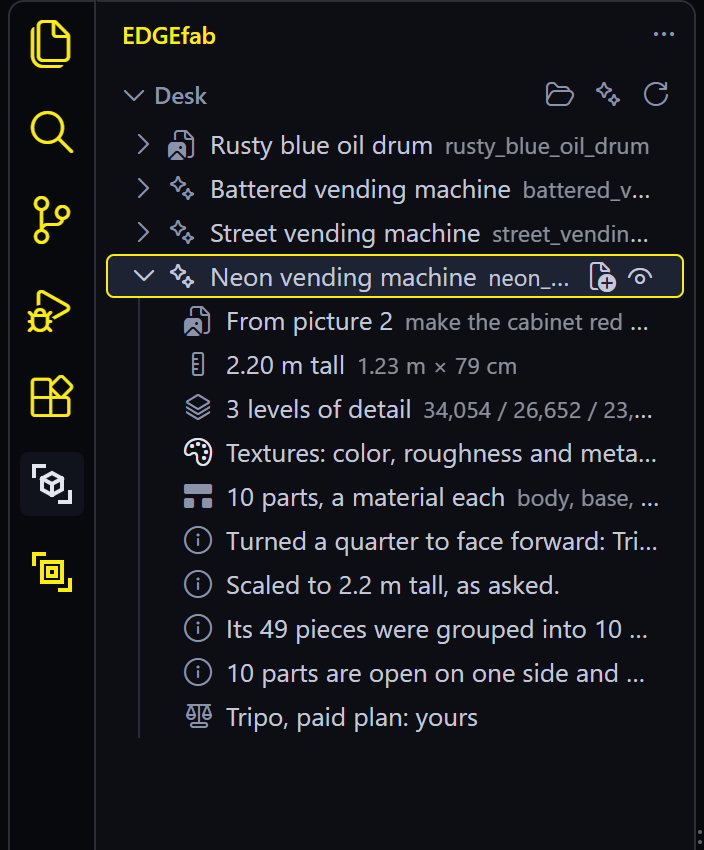
Open a prop with the arrow at its left to read about it.
| Line | Tells you |
|---|---|
| From picture 2 | Which picture the model was made from. Hover for the words |
| 1.80 m tall | Its real height, with its width and depth beside it |
| Size unknown: Set Size before adding it | Tripo gives no real size for models in parts and you gave none yet. See Size |
| 3 levels of detail | The triangle count of each level |
| Textures: color, roughness and metal, normal | Which kinds of texture the model brought |
| 9 parts, a material each | The parts’ names. Hover for each part’s share of the surface |
| Glows in places, from its glow map | It glows, and how strongly |
| A note, such as Turned a quarter to face forward | Something EDGEfab changed to make the model fit the game. See what EDGEfab does to a model |
| In the Library, version 2 | It is in the Library, and where |
| The license line | Where the model came from and whether it is yours to release |
Bring a model of your own
Any textured model saved as .glb (or .gltf) works: from Blender, a model store or another AI service.
| Way | How |
|---|---|
| Import a GLB… | The button at the top of the Desk. Pick the file |
| Make a Prop (EDGEfab) | Right-click a .glb in VS Code’s Explorer |
| Make a Prop | On a model file in the Library view |
EDGEfab prepares it the same way as a generated one and puts it on the Desk. It needs no key and no network.
| Good to know | |
|---|---|
| Size | A GLB carries its size in metres. If yours comes out too big or small, use Set Size… |
| Facing | Your model keeps the way it faces. Only Tripo’s models are turned |
| Its license | EDGEfab can’t know where your file came from. It records “from a file on disk”: check the model’s terms before you release a mod with it |
FBX and .blend |
Not yet. Export a GLB from Blender (File, Export, glTF 2.0, format glTF Binary) |
What you can do with a prop
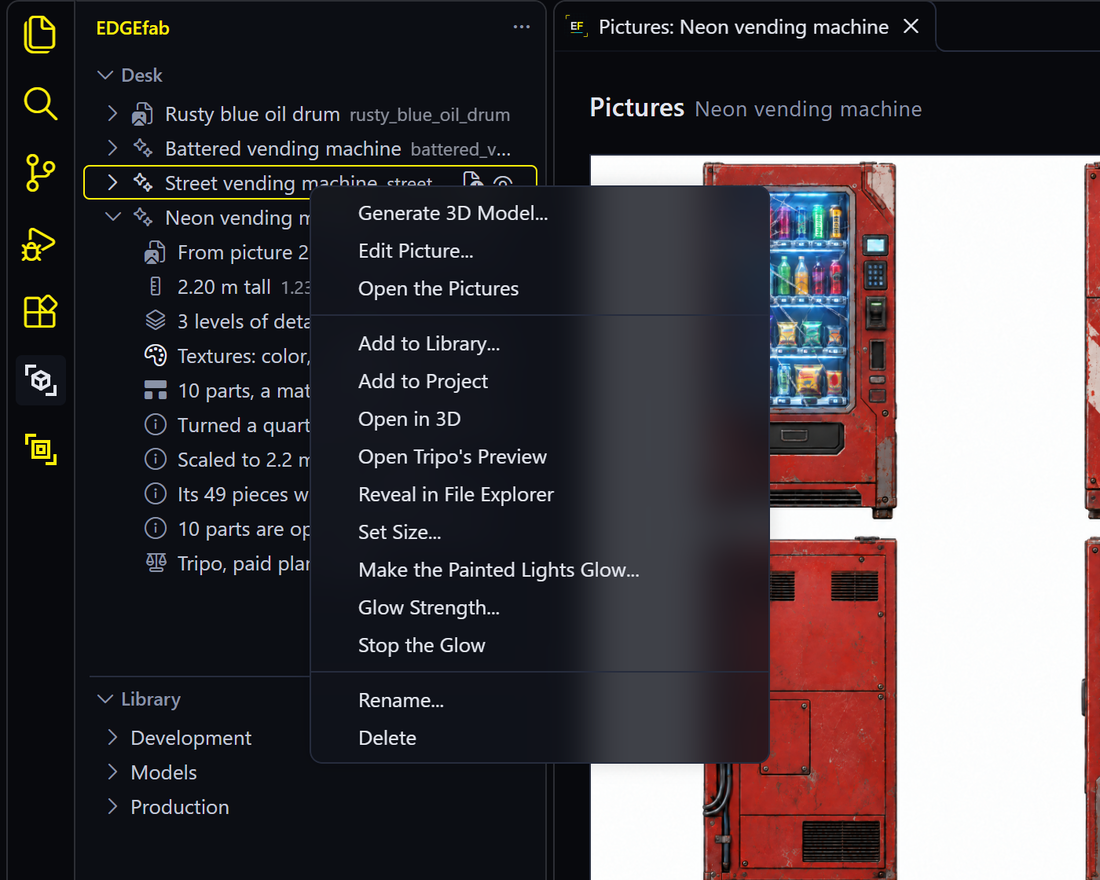
Right-click a prop. The three icons at the right of its line are Open in 3D, Add to Project and Open in EDGEmat.
| Action | Does | More |
|---|---|---|
| Add to Project | Puts the prop into your mod project as game files | Add to Project |
| Open in EDGEmat | Opens the prop’s mesh in your project on EDGEmat’s Desk, to give its parts game materials. Adds the prop to the project first if it isn’t there | Game materials on a part |
| Add to Library… | Keeps it in the EDGE Library, ready for any project | The Library |
| Open in 3D | Shows it in REDcode’s 3D view | 3D models |
| Set Size… | Sets its height in metres | Size |
| Make the Painted Lights Glow…, Glow Strength…, Stop the Glow | The glow | Glow |
| Open Tripo’s Preview | The preview picture Tripo sent with the model | |
| Reveal in File Explorer | Opens the prop’s folder | |
| Rename… | A new name, for it and its files | Below |
| Delete | Removes it from the Desk, with its model, textures and pictures. It asks first. A copy in a project or the Library stays |
A prop made from words also has Generate 3D Model…, Edit Picture… and Open the Pictures at the top of its menu. While it is still a picture, those and Reveal, Rename and Delete are the whole menu.
Rename
Rename… gives a prop a new name in words, such as Neon vending machine. Its files follow, in lowercase with _ for spaces: neon_vending_machine.
| What takes the new name | |
|---|---|
| The prop’s line on the Desk | Neon vending machine |
| Its folder, its model, every texture and every material | neon_vending_machine.glb, neon_vending_machine_body_basecolor.png, the material neon_vending_machine_body, and so on |
| Its game files, at the next Add to Project | neon_vending_machine.mesh, neon_vending_machine.ent, neon_vending_machine_body.mi |
| Good to know | |
|---|---|
| A name already taken | The new one gets _2 |
| Open tabs | The prop’s Pictures tab and 3D view close and open again on the renamed files |
| It doesn’t move | Close the prop’s 3D view in any other VS Code window first. Windows won’t move a folder that another window is showing |
| A project it is already in | Keeps the old files until you Add to Project again. Then delete the old folder from the project |
| The Library | Knows it as the same prop: its id doesn’t change |
Where the Desk lives
%LOCALAPPDATA%\EDGEfab\desk, one folder for each prop, named <name>.prop.asset. It is the same shape as an item in the EDGE Library, so adding to the Library is a copy.
An assistant sees the same Desk: what Claude makes shows up here, and the other way round. See Assistants.