The EDGEhack editor
The editor is the page where you change a quickhack. It opens when you press Edit… or Clone and Modify… on one of the game’s quickhacks, or click one of your own in the Desk view, its Project group or the Library view.
New to it? Do Change a game quickhack first. This page is for looking things up.
| On this page | |
|---|---|
| Two kinds of quickhack | A change to the game’s, or a new one |
| The top of the page | Buttons, the status line, warnings and notes |
| Texts and Feature lines | The name, the description, and your own tooltip lines |
| Icons | Pick, upload or generate |
| Numbers | RAM, upload, damage, duration, cooldown |
| Added effects | Borrow one, pick one, or build one |
| Get it | How players find a new quickhack |
| The rest of the page | Scripts, and what the game has |
| What a save writes | Your numbers, and the mod’s files |
| Try it |
Two kinds of quickhack
| Kind | Made with | What it changes |
|---|---|---|
| A change to a game quickhack | Edit… on the game quickhack’s page | The game’s own quickhack, for everyone who installs your mod |
| A new quickhack | Clone and Modify…, on that page or by right-click in the Quickhacks view | Nothing of the game’s. It is a separate quickhack beside the one it started from |
Each one you change or make is saved as a document, a small file named <name>.quickhack.json, in your project or on the Desk. The document holds only what you changed. Everything you leave alone stays the game’s.
Only quickhacks used on people can be changed or cloned. Device and vehicle quickhacks are read-only for now.
The top of the page
| Part | What it does |
|---|---|
| The line under the title | Says which kind of quickhack this is, then the status: what the last save wrote, or why it wrote nothing |
| Pack and Play | Packs the project and installs the mod. See Pack and Play |
| Add to Project | Shown instead of Pack and Play when the quickhack is on the Desk or in the Library, where it has no mod files yet |
| Try Live | Sends the quickhack’s changes into the running game. While it is on, the button reads Try Again, which sends them once more, and Stop appears. See Try Live |
| Warnings, in yellow | Something may not work as you expect, or nobody has seen it work yet |
| Notes, in grey with an info mark | The game working as designed, worth knowing. For example, how a burn and a poison act together |
Save with Ctrl+S. Undo and redo work as in any VS Code file.
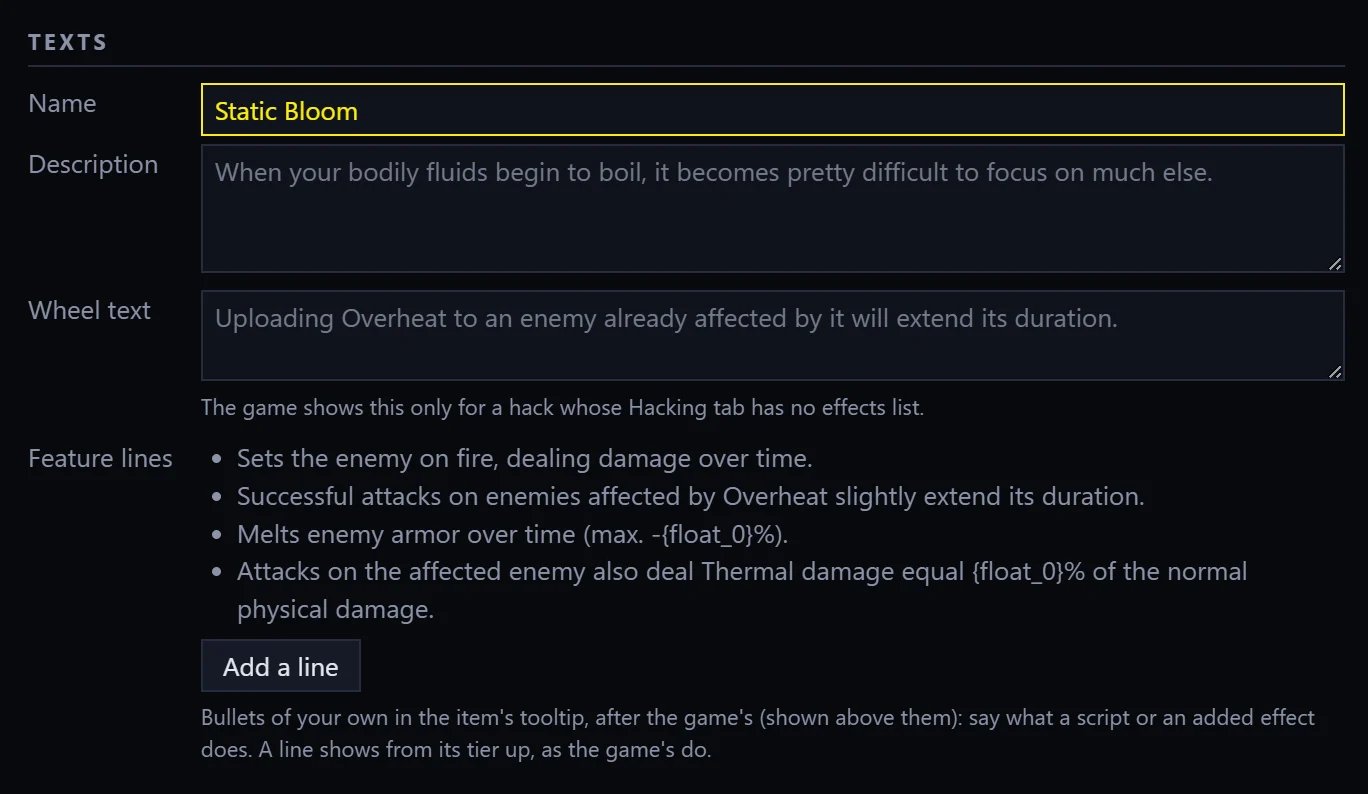
Texts
| Field | Where players see it |
|---|---|
| Name | Everywhere the quickhack is named |
| Description | On the item’s card in the inventory |
| Wheel text | The short description beside the quickhack in the scanner’s quickhack list. The game shows it only for quickhacks whose Hacking tab (the scanner’s panel for quickhacks) has no list of effects, so for most quickhacks you will never see it |
An empty field keeps the game’s text, shown in grey.
When you change a game quickhack’s texts, the new text applies to all its tiers. Texts can’t differ from tier to tier.
Texts reach the game only with Pack and Play and a game restart. In Try Live a new quickhack shows a text key such as LocKey#... in place of its name.
Feature lines
Feature lines are extra bullet points in the item’s tooltip, shown after the game’s own. Use them to tell players what your added effect or script does, since the game can’t describe those by itself.
- Press Add a line.
- Type the line, up to 160 characters.
- In the list beside it, pick the lowest tier that should show it, such as Rare and up. Higher tiers show it too, as the game’s own lines do.
Remove takes a line away. The game’s own lines are listed above yours, greyed, so you can see what is already said.
Icons
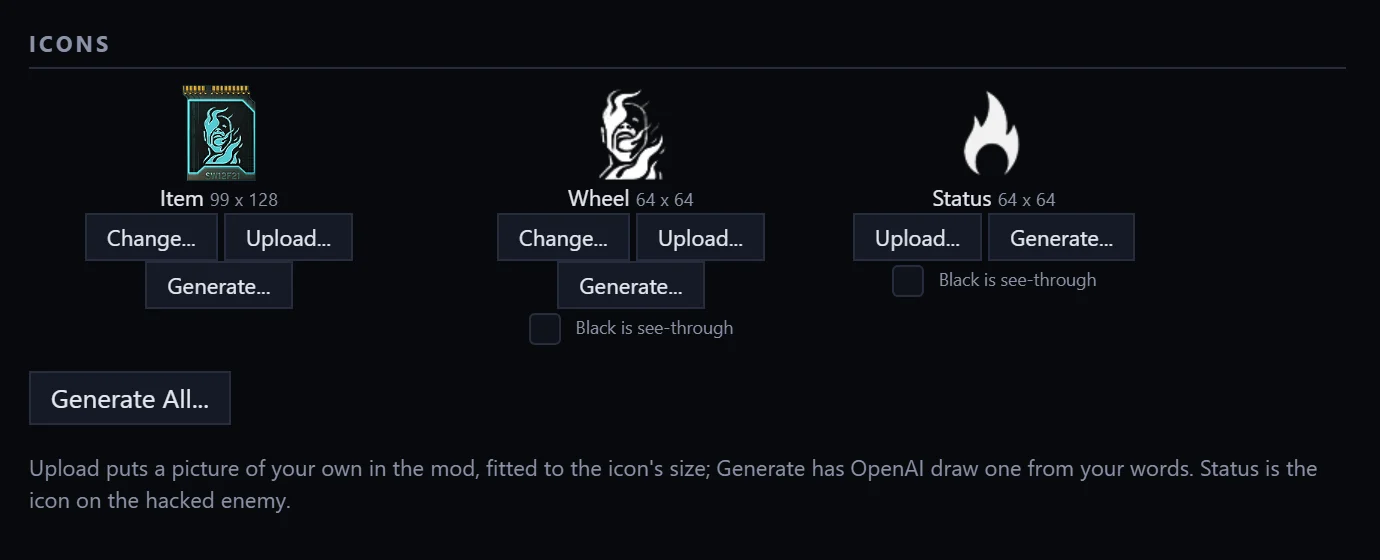
A quickhack has three icons:
| Icon | Where players see it | Size |
|---|---|---|
| Item | Its card in the inventory and the cyberdeck | 99 x 128 |
| Wheel | In the scanner’s quickhack list | 64 x 64 |
| Status | Over an enemy the quickhack is on | 64 x 64 |
Under each icon:
| Button | What it does |
|---|---|
| Change… | Opens a grid of the game’s own icons to pick from. Item and Wheel only: the Status icon has no Change button |
| Upload… | Takes a PNG or JPG of yours and fits it to the icon’s size |
| Generate… | Has OpenAI draw the icon from your words. See below |
| Original | Goes back to the game’s icon. Shown once you have changed one |
Wheel and Status also have a Black is see-through box. Tick it before you upload a white-on-black picture, and the black areas become transparent. The game’s own wheel and status icons are made that way.
When you save, EDGEhack packs your pictures into the image files the game’s interface uses. You don’t need to open them. Icons of your own reach the game with Pack and Play, not with Try Live.
Generating icons: cost and your OpenAI key
Generate… sends your words to OpenAI’s image service, which draws the icon. It is optional, and it costs money.
- Press Generate… under an icon, or Generate All… for all three.
- In What the icon shows, type a few words, such as
a skull made of static. - Press Generate. A notification shows progress, with Cancel.
- When the picture arrives, press Keep to use it, or Try Again for another.
- Save.
| Good to know | |
|---|---|
| Cost | Each picture is one paid image on your OpenAI account, and Generate All is three. The price depends on the model and quality: see OpenAI’s pricing page. Nothing goes into your mod until you press Keep and save |
| Your key | The first Generate asks for your OpenAI API key. EDGEhack keeps it encrypted in VS Code’s secret storage, for EDGEhack only, and sends it only to OpenAI. EDGEhack: Set the OpenAI Key… changes it and Clear the OpenAI Key… forgets it |
| Generate All | Draws the Item first, then the Wheel and the Status from it, so all three show the same symbol |
| The Item icon | Only the symbol is generated. EDGEhack places it on the game’s own card background for that quickhack, read from your game |
| Show the Prompt | Shows exactly what is sent to OpenAI |
| Model and quality | Two settings: see Settings |
Numbers
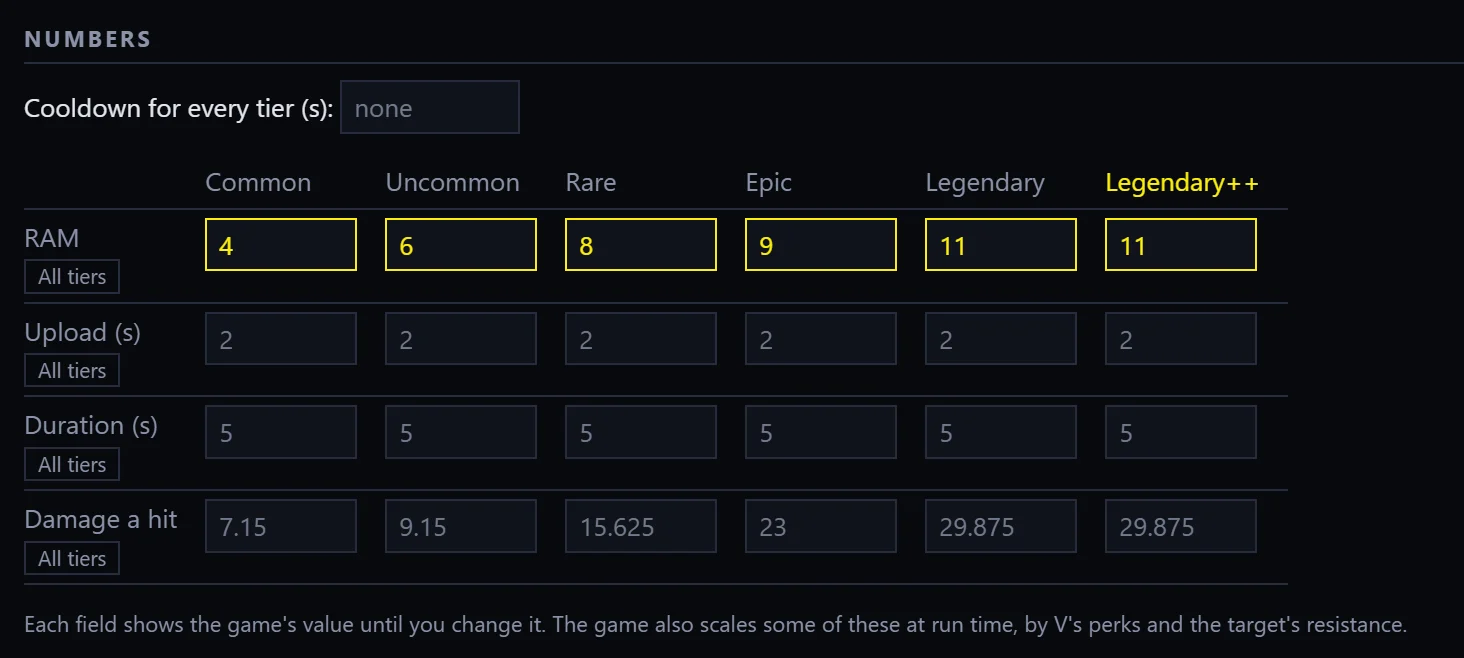
A table with a column for each tier and a row for each number. Every field shows the game’s value in grey until you type your own.
Selecting a tier. Click a tier’s name at the top of its column to select it. The selected tier matters in four places: All tiers works from it, Try Live puts it in V’s backpack, Get it shows it, and the panel at the bottom of the page shows what the game has for it.
| Row | What it is |
|---|---|
| RAM | What the quickhack costs V to use |
| Upload | How many seconds it takes to reach the target |
| Duration | How many seconds its main effect lasts. Tiers that share one effect in the game share this number, and the page warns you if you give them different ones |
| Damage a hit | The damage each hit does. For damage over time, this is one tick. The game’s tooltip shows damage per second, so its number can differ from this one |
| Against bosses: RAM, Against bosses: upload | Only when you change a game quickhack. The game keeps separate RAM and upload numbers for bosses. Leave these empty and bosses get the same change as everyone else |
A row is missing when the quickhack has no such number. A field reads none when that tier has none.
All tiers, the small button on each row, gives every tier the selected tier’s change. If you raised Rare by 2, every tier goes up by 2 from its own value. So select the tier you typed in first.
To undo a change, clear the field or type the grey value. The number is then taken out of the document.
Cooldown for every tier is one field, because a quickhack has one cooldown for all its tiers. A new quickhack gets a cooldown of its own, separate from the quickhack it was cloned from.
Why the game shows other numbers. The game scales some numbers while you play, by V’s perks and the target’s resistances. So the RAM, upload time or duration you see when scanning can differ from the inventory’s and from this page. The game quickhack’s read-only page marks those numbers with a star: point at one to see what scales it.
Added effects
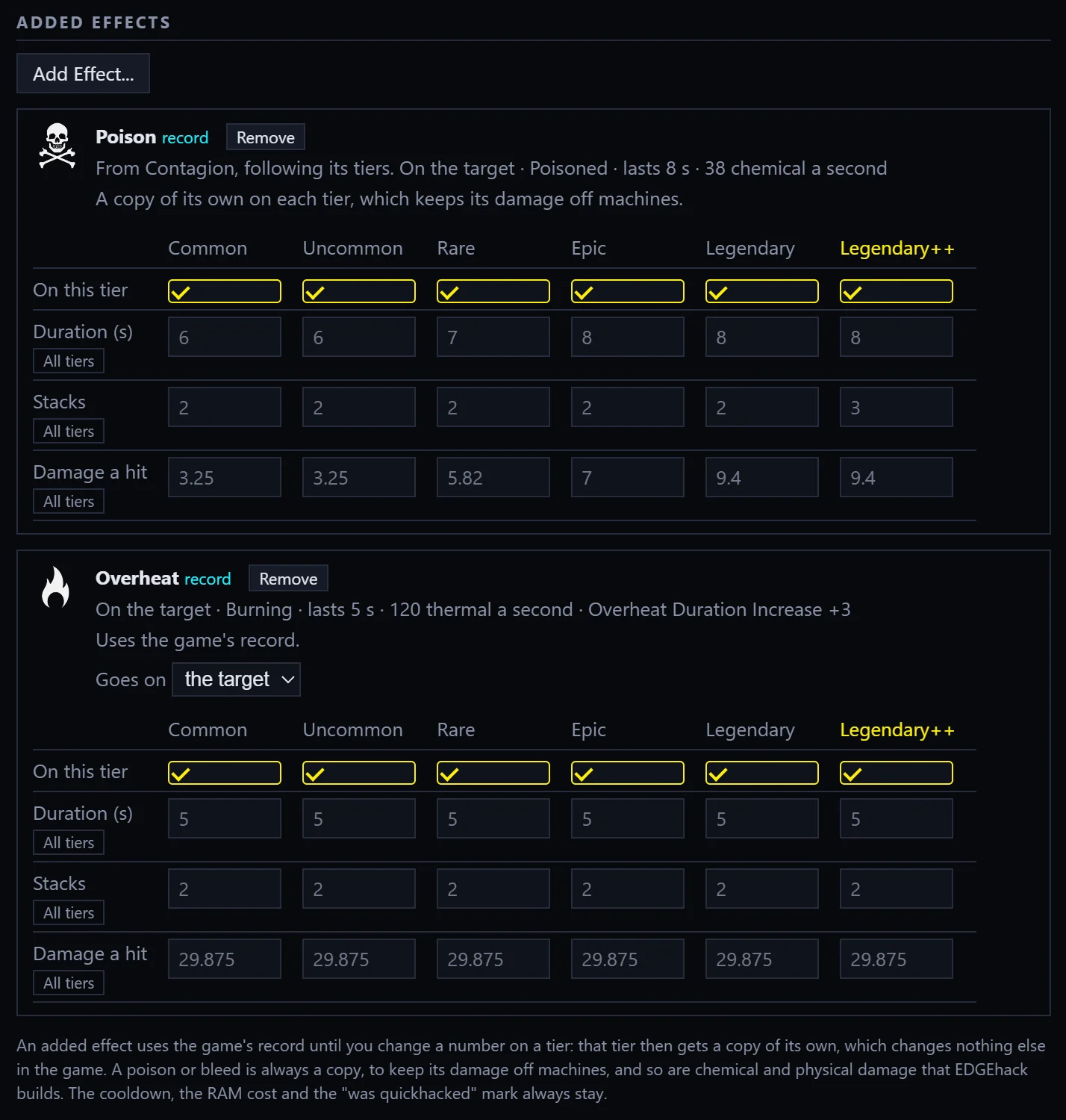
An effect is something the quickhack does to its target, or to V: a burn, a poison, a slowed aim. Most are status effects, the game’s word for a condition that lasts a while. Add Effect… gives your quickhack more of them. It opens a panel with three tabs:
| Tab | What it adds | Good to know |
|---|---|---|
| Copy Existing | Another quickhack’s effect, such as Contagion’s poison | It follows that quickhack’s tiers: your Rare tier gets its Rare effect |
| Status Effects | Any one of the game’s status effects, on the target or on V | The list starts with the ones the game’s own quickhacks and grenades put on enemies. Those are known to work. Show all adds V’s own effects and boss-fight effects, which may do nothing on an ordinary enemy |
| Make New | An effect EDGEhack builds from the game’s own parts | Three kinds, below |
What Make New builds:
| Kind | What you choose | It starts at |
|---|---|---|
| Damage over time | A damage type (Electric, Thermal, Chemical or Physical), the damage a hit, the seconds between hits, and how long it lasts. Electric can show the game’s sparks as it starts | 10 damage every 0.5 seconds for 8 seconds |
| Stat change while hacked | One thing about the target, for a time: accuracy, armor, a resistance, evasion, how fast it spots V, its time between shots, or whether it can sprint, jump, take cover or call reinforcements | 10 seconds |
| Chance to apply | A status effect, and the chance that each upload applies it | 25% |
Each added effect becomes a card with its own small table:
- On this tier: clear a box to leave the effect off that tier.
- A row per number, by tier: duration, stacks, damage a hit, seconds between hits, the stat’s value or the chance, as the effect has them. Each row has its own All tiers.
- Goes on: the target or V, for an effect picked on the Status Effects tab.
- Remove takes the effect off.
Your changes stay yours. Until you change one of its numbers, an added effect is the game’s own. When you change a number on a tier, EDGEhack makes a private copy for that tier, so nothing else in the game that uses the effect changes.
Machines are spared. EDGEhack stops an added poison or bleed, and chemical or physical damage it builds, from hurting drones, androids and mechs. The game’s own poisons don’t check for machines, so without this a poison borrowed from Contagion would hurt a drone through Overheat. A grey note at the top of the page says when this applies.
Get it
New quickhacks only. This section decides how players find each tier.
A new quickhack is sold and crafted like the game quickhack you cloned it from, tier for tier: the same vendors, the same requirement (such as a street cred level), and its own crafting recipe wherever the game sells one for that tier. Vendors show it on a save you already have.
For the selected tier, the section says how the game hands out the original, then offers:
| Control | What it does |
|---|---|
| Sell it there | Untick it and vendors don’t stock this tier |
| Components to craft it | How many crafting components this tier costs. The kind of component stays the game’s |
| The Console line | Gives V this tier through REDnode’s Console, for testing. It works once the quickhack is in the game: after Pack and Play, or while you try it live |
Some tiers are not sold by any vendor in the game: they come from loot or a quest. EDGEhack says so, and does not copy those routes yet. Use the Console line to get such a tier.
The Console line is missing while a quickhack is on the Desk. Its internal ids take the project’s name, so the line exists only once it is in a project.
The rest of the page
| Section | What it is |
|---|---|
| Scripts | Optional logic of the quickhack’s own. See Scripts |
| What the game has for this tier | Read-only: the selected tier as the game has it, with every effect in plain words and a link to each record. Click a link to open the record in REDcode |
What a save writes
Your document stores the number you typed. From it, each save writes the mod’s files into your project:
| File | Where in the project | Holds |
|---|---|---|
| Your document | source\raw\edgehack\<name>.quickhack.json |
What you changed, as you typed it |
| A TweakXL file | source\resources\r6\tweaks\<mod>\<name>.yaml |
The changes for the game |
| Texts | The project’s text file, with an ArchiveXL .xl file beside it |
Names, descriptions and wheel texts of your own |
| Icons | Under source\archive |
Pictures of your own |
| A redscript file | source\resources\r6\scripts\EDGEhack\NewQuickhacks.reds |
New quickhacks only: lets enemies be targeted by them. The same file in every EDGEhack mod |
The TweakXL file stores each number as a difference from the game’s number, because that is how the game adds up a quickhack’s cost. You only ever edit the document. That is also why your numbers survive a game patch: EDGEhack works the difference out again from the game’s new value when you save after a patch.
A save writes nothing while every field is still the game’s, and for a quickhack on the Desk or in the Library. The status line says which.
Try it
Build an effect of your own on a quickhack you made, such as Static Bloom from Your first quickhack.
- Open it, scroll to Added effects and press Add Effect….
- Click Make New, then Damage over time.
- On the new card, set Damage type to Thermal.
- Click Rare at the top of the Numbers table to select it. On the card, type
20in Damage a hit under Rare, press Tab, then press that row’s All tiers. - Under Texts, press Add a line and type
Adds a second burn. - Save.
| What you should see | |
|---|---|
| After step 2 | A card named Electric damage over time, with 10, 0.5 and 8 in grey on every tier |
| After step 3 | The card renamed Thermal damage over time |
| After step 4 | 20 on every tier of that row |
| After step 6 | The status line naming the TweakXL file it wrote |
Then see it in the game with Pack and Play: the extra burn ticks on the enemy, and your line shows in the item’s tooltip.