Finding what you want to change
You know the thing from the game: a jacket, a gun, a name on a menu. The game’s files know it by other names. A jacket’s files aren’t called “jacket”, and its name in the inventory isn’t stored with it. This page shows the ways from what you see to what you edit.
| On this page | |
|---|---|
| What are you changing? | Which tool finds it |
| The pieces of an item | Text, record, files |
| From a name to its text | The LocKeys view |
| From a name to its record | The TweakDB view |
| From a guess to its files | The Game Assets filter, and Find Items to check |
| From a record to its files | The long way, and the assistant’s way |
| The file types you’ll meet | One line each |
What are you changing?
| You want to change | It lives in | Find it with |
|---|---|---|
| A name, a description, any text on screen | The game’s texts (LocKeys) | The LocKeys view |
| A price, damage, a stat, what a shop sells | TweakDB, the game’s database | The TweakDB view |
| How something looks: shape, colour, texture | Game files: meshes, materials, textures | The Game Assets filter, then Find Items |
| A sound effect | The game’s sound packs | The game sound list |
| An icon or a piece of the interface | Atlases (.inkatlas) and their textures |
The Game Assets filter, with *.inkatlas |
The pieces of an item
One item in the game is three kinds of data, kept apart:
| Piece | What it is | Example |
|---|---|---|
| Its texts | Name and description, as numbered texts called LocKeys | LocKey#4123, “Sunny Ammo synthetic high-tops” |
| Its record | An entry in TweakDB with its stats, its price, and the names that lead to its text and its look | Items.CasualShoes_01_basic_01 |
| Its files | The 3D shape, the materials and the textures | base\characters\garment\player_equipment\feet\s1_055_shoe__converse\s1_055_pma_shoe__converse.mesh |
The record is the middle: it points at the texts (a LocKey) and, through a few steps, at the files. Which piece you need depends on what you want to change.
From a name to its text
- Open the LocKeys view and press Search LocKeys… (the magnifier).
- Type words of the name as the game shows it, such as
sunny ammo high-tops.
You should see the matching texts with their LocKey numbers. To change one, press Add to Project Onscreens on it. Your first mod does exactly this, start to finish. More on the LocKeys view.
From a name to its record
Records are found by their path, the internal name, not by the name on screen. Paths are in English and often close to the real name, so guessing works more often than not.
- Open the TweakDB view. The first time, it loads for about 12 seconds.
- Press Filter TweakDB (the funnel) and type words you expect in the path:
jacket,quadra type66,preset yinglong. - Click a record to open its page. A LocKey on the page, such as the
displayName, shows its text beside it, so you can check you have the right item.
| If the filter finds | Do this |
|---|---|
| Too many records | Add a word. Every word must be in the path |
| Nothing | Try a shorter or different word: the maker’s name, or the item’s kind (shoes, smg) |
| Records, but you can’t tell which is yours | Open a few and read their displayName text |
If you have the item in the game, REDnode’s Console can tell you its record path directly.
There is no search from an on-screen name straight to a record yet. An assistant can do it for you: “find the TweakDB record of the Sunny Ammo synthetic high-tops” (see Assistants and MCP).
From a guess to its files
Files are found by words of their path too.
- In Game Assets, press Filter Game Assets (the funnel).
- Type a word for the thing and the kind of file:
converse meshorosprey mesh. - Click a
.meshto see it in 3D.
Where things usually are:
| Thing | Look under |
|---|---|
| Clothing V can wear | base\characters\garment |
| Weapons | base\weapons |
| Vehicles | base\vehicles |
| Phantom Liberty’s additions | The same folders under ep1 |
| The game’s texts | base\localization\<language> |
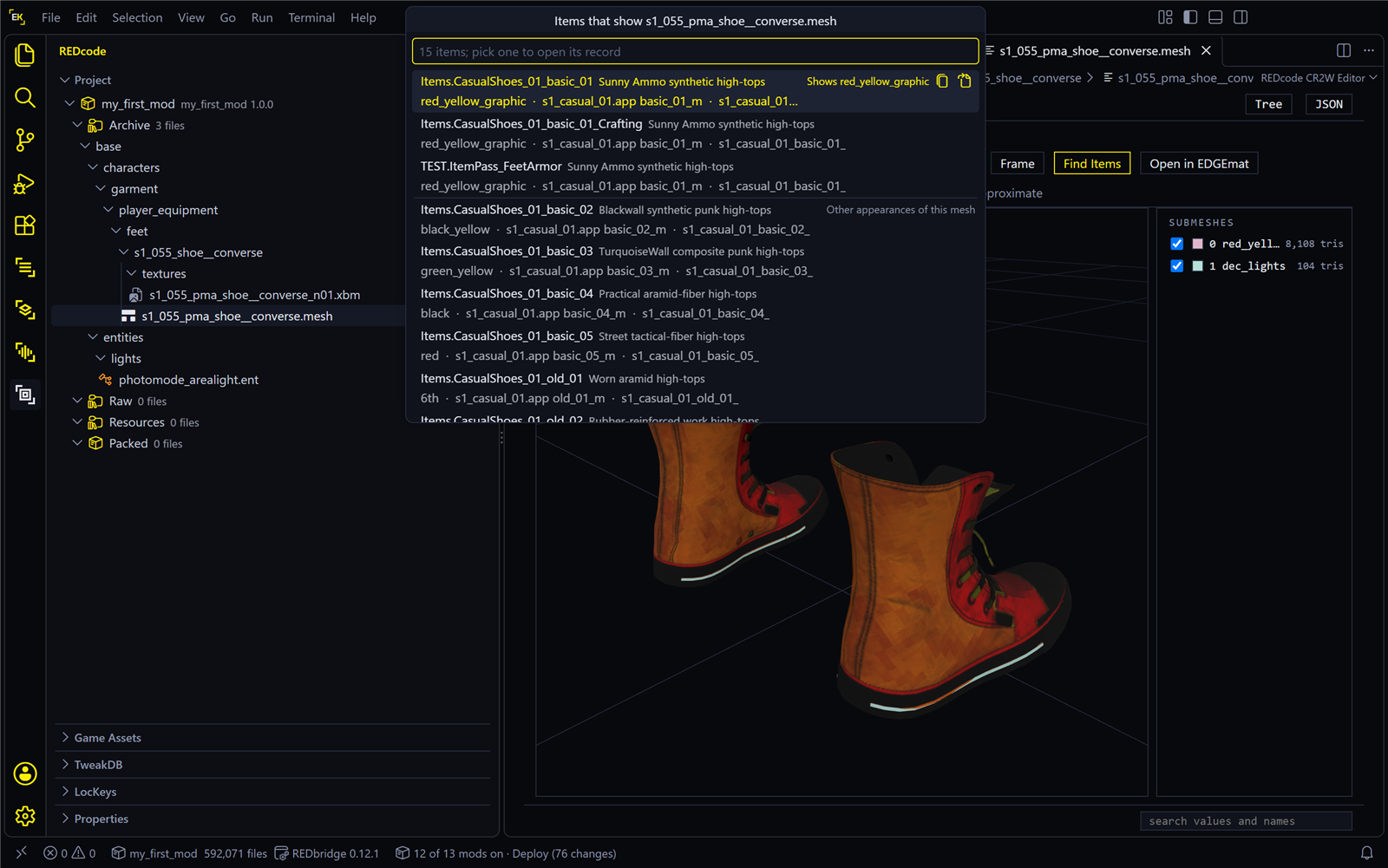
Check with Find Items. For clothing, the 3D view can tell you which items a mesh belongs to. Open the mesh, pick a look in the Appearance list, and press Find Items. It lists the items that show that look, by their name in the game. See Which items use a mesh. It doesn’t cover weapons.
From a record to its files
A record’s page shows resource paths as links: click one and the game file opens. Not every record has them. A piece of clothing reaches its files in steps instead:
| Step | In | Follow |
|---|---|---|
| 1 | The item’s TweakDB record | Its entityName and appearanceName |
| 2 | A factory table, a .csv under base\gameplay\factories |
The row for that entityName: it names an .ent file |
| 3 | The .ent file |
The appearance with that appearanceName: it names an .app file and a look in it |
| 4 | The .app file |
That look: its mesh components name the .mesh and the mesh’s appearance |
| 5 | The .mesh file |
That appearance: a material for each part of the mesh |
Every one of those files opens in REDcode, so you can follow the chain by hand in the CR2W editor, using its search box. It is slow work. This is the job an assistant is good at: with EDGEchat, “find the files behind this jacket” walks the chain for you, and that route was checked on game 2.5. The chain has not been clicked through by hand in REDcode’s own tests.
Clothing has separate looks for female and male V, and for first and third person. A change to one garment often means changing more than one file.
The file types you’ll meet
| File | What it is |
|---|---|
.ent |
An entity: a ready-made game object, such as an item slot or a prop, with its parts and the looks it can take |
.app |
A list of looks (appearances), each naming the meshes it shows |
.mesh |
A 3D shape, with its materials |
.xbm |
A texture: a picture wrapped onto a shape, or used in the interface |
.mlsetup |
The layers of a layered material: a surface and a colour per layer. EDGEmat edits these in plain words |
.mlmask |
Where each of those layers goes on the shape |
.mi |
A material: which textures and settings a surface uses |
.inkatlas |
Interface pictures, such as icons, cut from one texture |
.anims |
Animations |
.csv, .json inside the archives |
Tables and texts in the game’s own wrapper. They open in the CR2W editor |
Next: Editing game files, or Export and import to change a texture or a shape.