3D models
| On this page | |
|---|---|
| Generate 3D Model | From a picture, step by step |
| Detail and cost | The choices, in Tripo credits |
| Parts | Named pieces, a material each |
| Size | Set Size |
| What EDGEfab does to a model | So it fits the game |
| Glow | Painted lights that shine |
| Open in 3D | REDcode’s viewer |
Generate 3D Model
In the Pictures tab, with the picture you like in view:
- Press Generate 3D Model.
- Choose how much detail: see below.
- Type the object’s height in metres, such as
1.8. You can leave it empty and set it later. - Read the cost and your Tripo balance, then press Generate 3D Model. Nothing is paid before this.
Make Neon vending machine in 3D with Tripo, from its four views, in parts?
About 60 credits and 3 to 4 minutes. You have 2,940.
A progress note shows while Tripo works; Cancel on it stops EDGEfab waiting. When the model arrives, EDGEfab prepares it for the game and the prop’s line on the Desk becomes a model. The history card of the picture it came from gets a 3D chip.
On the Desk, the same thing is Generate 3D Model… in a picture’s right-click menu: it uses the newest picture.
The first time, EDGEfab asks for your Tripo key and your plan: see Install and set up.
Detail and cost
| Choice | Gives | From a picture, in parts |
|---|---|---|
| Detailed texture | A sharp 4096² texture: labels, screws and vents are crisp. The usual choice | About 60 credits |
| High detail | The detailed texture and Tripo’s detailed shape: crisper bevels and buttons, about three times the triangles. Flat panels may ripple | About 80 credits |
| Also | |
|---|---|
| Straight from words, no picture | About 50 credits |
| Not in parts | 20 to 30 credits fewer: turn off Generate In Parts in Settings |
| The exact number | EDGEfab works it out for your choices and shows it before you pay. Tripo’s prices can change |
| A model that fails | If Tripo refuses the words or the picture, EDGEfab says why in plain words |
Parts
By default a generated model comes in parts: a few named pieces such as body, front, back, base, glass and details, each with its own material and its own texture. That is what lets you give one part a different look later, such as car paint on the body or real glass on the shelves: see game materials on a part.
Tripo sends dozens of small pieces (79 for one vending machine). EDGEfab groups them into at most ten parts, names each by where it sits, and packs each part’s textures into one picture. A model you import with many pieces is grouped the same way.
The price of parts: about 20 credits more, and Tripo gives such models no real size. That is why EDGEfab asks how tall the object is.
Size
The game works in metres, and a prop at the wrong size looks wrong at once.
| To | Do |
|---|---|
| Give the height when making it | Type it when Generate 3D Model asks |
| Set or change it later | Right-click the prop on the Desk, Set Size…, and type its height in metres |
Set Size scales the whole model evenly, so width and depth follow. For scale: a vending machine is about 1.8, an oil drum 0.9, a table lamp 0.3.
A prop whose size is unknown shows a warning on the Desk. Set it before adding the prop to a project or the Library. After changing the size of a prop that is already in a project, Add to Project again.
What EDGEfab does to a model
Every model, generated or your own, is prepared the same way. The Desk lists what was done as notes under the prop.
| EDGEfab | Why |
|---|---|
| Stands it on its base, at its real size | So it sits on the ground where you drop it |
| Makes three levels of detail: full, a half and a fifth of the triangles | The game switches to the simpler ones with distance, so the prop costs less to draw. They keep to the texture, so flat panels stay clean |
| Simplifies a part over 65,535 vertices | The game’s limit for one part. A raw Tripo model can have 1.4 million triangles. The Desk says when it did |
| Writes the textures out, by kind | Color, roughness and metal, and bumps, for the game materials made by Add to Project |
| Groups many pieces into named parts | A material each, so one part can change |
| Turns Tripo’s models a quarter | Tripo’s models face sideways. The game’s props face forward |
| Adds back faces to thin, open parts | The game draws one side of a surface, so an open shell would be see-through from behind |
| Keeps a glow the model already has | A model from Blender or a store with glowing materials keeps its glow color, strength and map |
Glow
Tripo’s models don’t glow: their lights are only painted into the color texture. By day that looks fine. At night a painted screen is dark.
Make the Painted Lights Glow… (right-click a prop) finds the bright, strongly colored painted areas and makes them really glow. It works offline and costs nothing.
-
Choose how much counts as a light:
Choice Catches A few lights Only the brightest, most colorful spots The lights What is both bright and strongly colored. The usual choice Many lights Dimmer and paler areas too. May catch colored paint that isn’t a light -
Choose how strongly:
Strength Looks like For Deep color (0.25) A saturated glow that keeps its color Small lights, buttons, screens Soft glow (1) Lit in the dark, visible by day, no wide halo Bright (3) A strong glow with a halo. The default Signs, big lit panels White-hot (8) Washes out to white with a wide halo Lamps A number… Anything above 0, up to 64 About 0.125 is the least that shows in the game
Look at it in 3D afterwards. If it caught too much or too little, run it again: the new try replaces the last one.
| Later | Do |
|---|---|
| Change how strongly it glows, for one part or all | Glow Strength… |
| Turn it off | Stop the Glow |
| See it in a project it is already in | Add to Project again |
How bright a glow looks depends on how much of the prop glows and where it stands. Try one, look at it in the game by night, and change it.
Open in 3D
Click a model on the Desk, or right-click it and choose Open in 3D. It opens in REDcode’s 3D viewer with its textures.
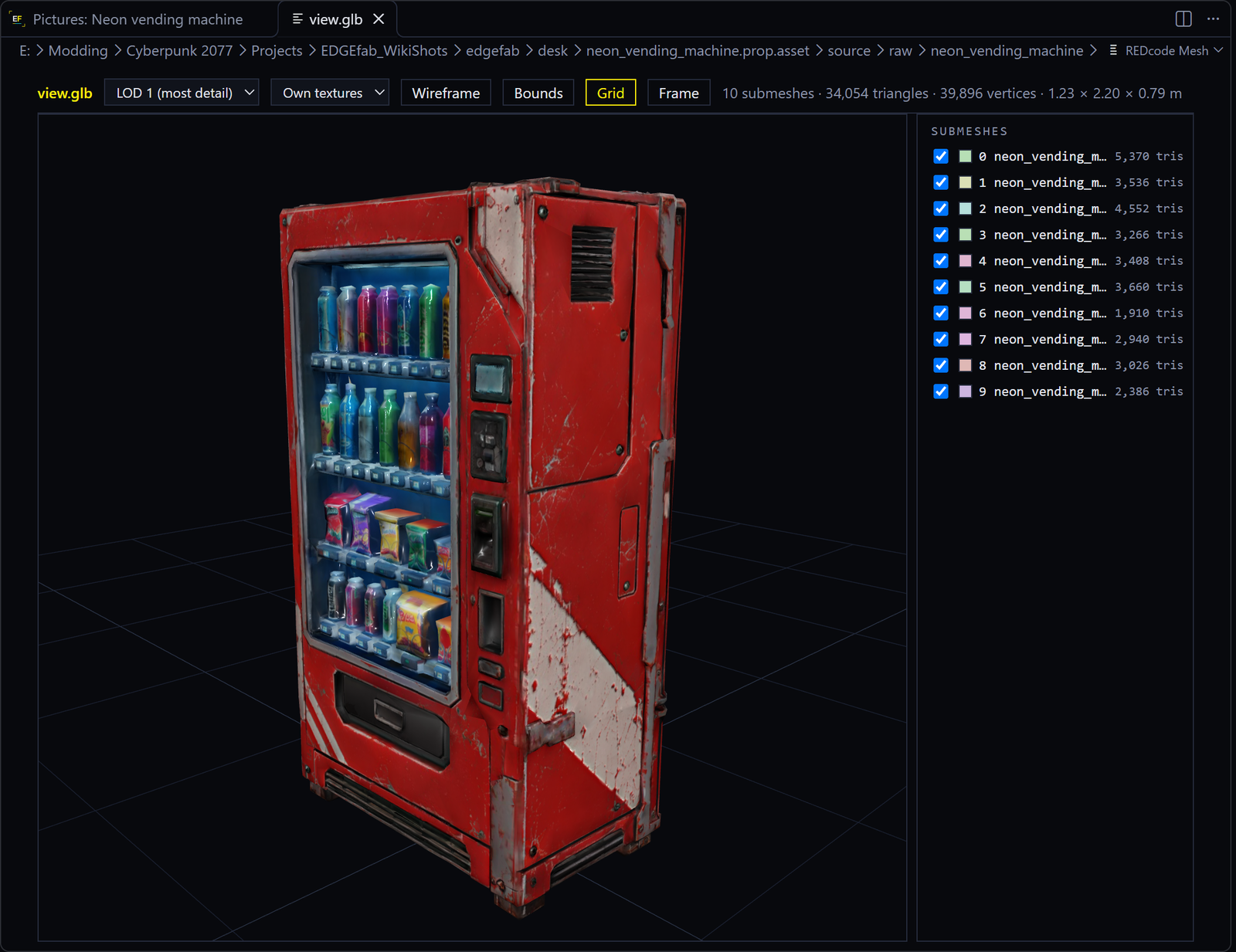
| You can | |
|---|---|
| Turn, pan and zoom | Drag and scroll |
| Show or hide a part | To see which part is which |
| Step through the levels of detail | To see what the game shows from far away |
| See the glow | The lit areas show as they will in the game, roughly |
The view is a preview: the game’s lighting, shine and bumps differ. It needs REDcode. Without it, EDGEfab offers to install REDcode, or to open Tripo’s preview picture.
Next: Add to Project.