The Desk and the Library
A quickhack you make can live in three places. A project is one mod: what gets packed and installed. The Desk is a scratch area for quickhacks that don’t belong to a mod yet. The Library is where you keep finished quickhacks for good, to use in any mod.
You can ignore both the Desk and the Library. If you always have a project open in REDcode, everything you make goes straight into it.
A typical use: you made a quickhack you like in one mod, and want it in a second mod too. Add it to the Library, open the second project, and add it to that project from the Library.
| Desk | Library | |
|---|---|---|
| What it’s for | Quickhacks you’re working on, with no project needed | Quickhacks you keep for good |
| Where it is | EDGEhack’s own folder, %LOCALAPPDATA%\EDGEhack\desk |
The EDGE Library: one folder of your own that the EDGE tools share, Documents\EDGE Library unless you chose another |
| Organised | Newest first | In folders you make |
| Versions | No | Yes. Each save raises the version number |
Neither has mod files. A quickhack gets its mod files when you add it to a project.
| On this page | |
|---|---|
| The Desk | Work with no project open |
| The Project group | The open project’s quickhacks, and removing one |
| Add to Library | Keeping a quickhack |
| The Library view | Using a kept quickhack |
| Refresh from Library | Taking a newer version into a project |
| Try it |
The Desk
A quickhack lands on the Desk in two ways:
- Press the + in the Desk view’s title bar (Clone and Modify on the Desk…), pick one of the game’s quickhacks, and name the new one.
- With no project open in REDcode, press Edit… or Clone and Modify… on a game quickhack’s page.
You edit a Desk quickhack like any other, and Try Live works on it. Where a project quickhack has Pack and Play, its page has Add to Project.
Hover a Desk quickhack for its buttons, or right-click it for the same actions by name:
| Action | What it does |
|---|---|
| Add to Project | Copies it into the project open in REDcode, gives its internal ids the project’s name, and writes its mod files. The copy on the Desk stays as it was. If the project already has it, EDGEhack asks before replacing it |
| Add to Library | Keeps a copy in the EDGE Library: see below |
| Duplicate… | Right-click only, on a new quickhack: a second copy on the Desk under another name |
| Remove from the Desk… (the trash can) | Moves it to the Recycle Bin, after asking. A copy you added to a project stays in the project |
The Project group
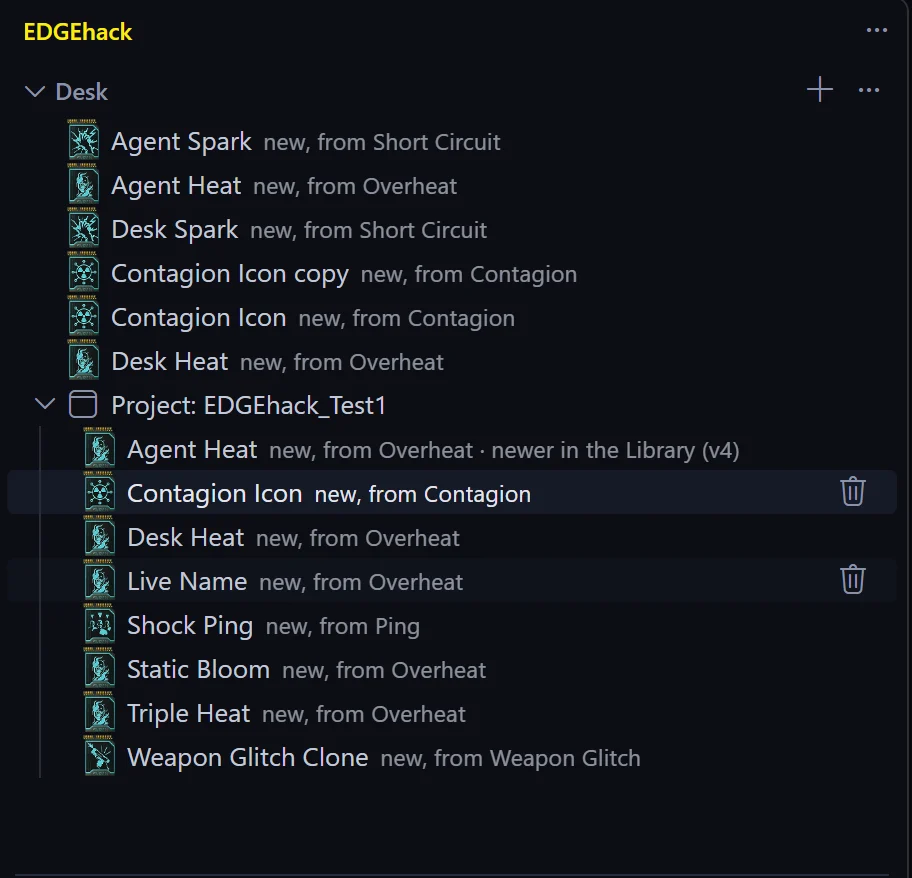
Below the Desk’s quickhacks, the Project group lists the quickhacks in the project open in REDcode. Each is marked new, from Overheat or changes Overheat. Click one to open it.
| Action | What it does |
|---|---|
| Add to Library (right-click) | Keeps a copy in the EDGE Library |
| Refresh from Library | Shown when the Library has a newer version: see below |
| Remove from Project… (the trash can) | Takes the quickhack out of the project. A list shows what goes to the Recycle Bin: its document, its TweakXL file and its icons. Its texts are taken out of the project’s text file. A script file you wrote stays |
Removing a quickhack from the project does not take it out of the game. Press Pack and Play again afterwards, or uninstall the mod.
Add to Library
On a Desk quickhack, or by right-click on a Project one:
- Choose Add to Library. The first time, EDGEhack asks where the EDGE Library should go, unless another EDGE tool already set it up.
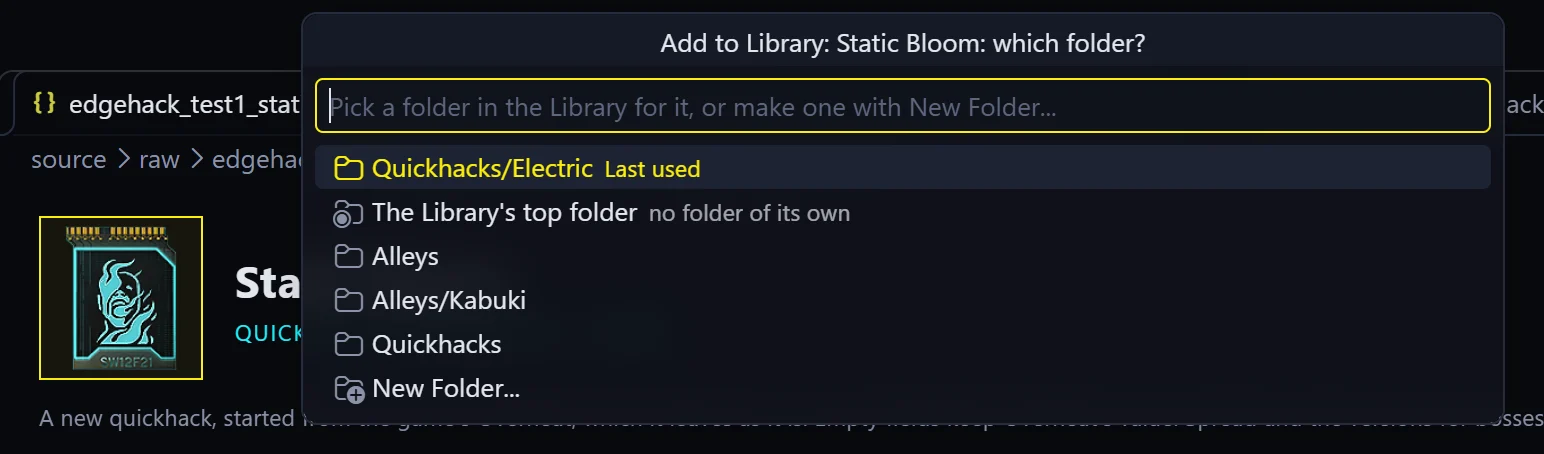
- A list asks which folder. Pick the Library’s top folder, one of your folders, or New Folder… to make one, such as
Quickhacks/Electric. The folder you used last is offered first.
You should see a message that the quickhack is in the EDGE Library, with a Reveal button, and the quickhack in the Library view.
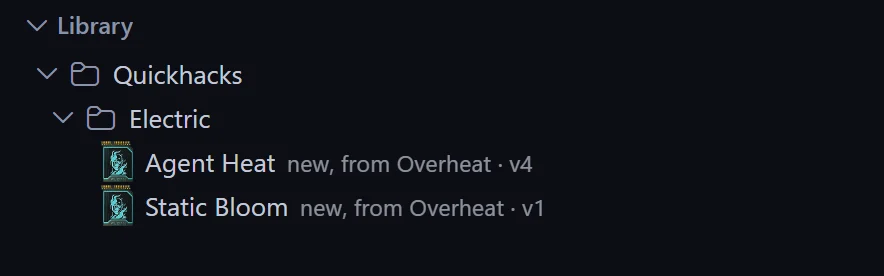
The quickhack is copied into that folder as <name>.quickhack.asset, with its own icons. When it comes from a project, the project’s name is taken out of its ids, so the Library copy can be added to any project.
If you add the same quickhack again, EDGEhack finds its Library copy wherever you moved it, and asks before replacing it.
The Library view
The view shows the Library folders that hold quickhacks, and each quickhack with its version number. Refresh in the title bar reads the folders again.
| On a quickhack | What it does |
|---|---|
| Click | Opens it in the editor. Each save raises its version. Its page offers Add to Project |
| Add to Project | Copies it into the open project, gives its internal ids the project’s name, and writes its mod files. The project notes where it came from, in source\library.json |
| Copy to the Desk (right-click) | Makes a copy on the Desk to work on. When you add that copy to the Library again, it replaces this one, after asking |
| Reveal in File Explorer (right-click) | Opens its folder |
| Remove from Library (the trash can) | Moves it to the Recycle Bin, after asking. Projects that took it keep their copy |
Refresh from Library
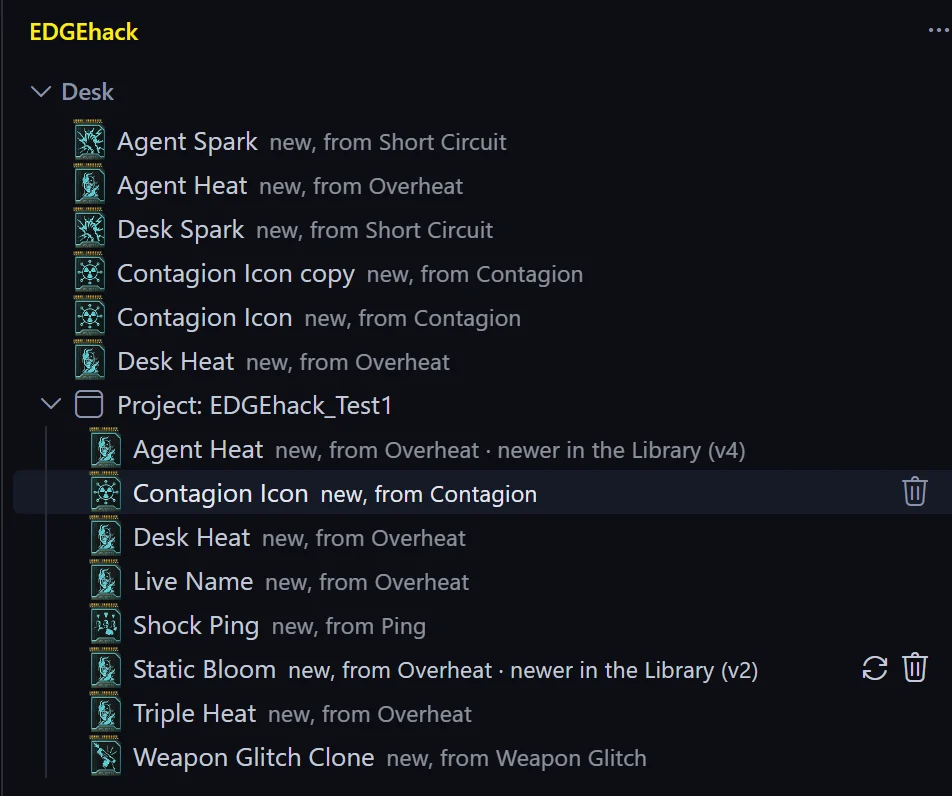
A project keeps its own copy of a Library quickhack. When you later change the Library’s one, the project’s copy is marked newer in the Library (v3) in the Project group, with the Library’s version number.
Refresh from Library on that row takes the new version, after asking. Changes you made to the project’s copy since you added it are lost. Its mod files are written again.
Try it
You need a project open in REDcode.
- Press the + in the Desk view’s title bar, pick Overheat, and name the new quickhack
Desk Spark. - Hover it and choose Add to Library. Pick New Folder… and type
Quickhacks/Test. - In the Library view, hover Desk Spark and choose Add to Project.
- Click Desk Spark in the Library view, change a number and save.
- In the Desk view’s Project group, press Refresh from Library on Desk Spark.
| What you should see | |
|---|---|
| After step 1 | Desk Spark on the Desk, and its page with Add to Project where Pack and Play would be |
| After step 2 | Desk Spark in the Library view, under Quickhacks, then Test |
| After step 3 | Desk Spark in the Project group, and a message listing the mod files added |
| After step 4 | The Project group’s Desk Spark marked newer in the Library, with the new version |
| After step 5 | The mark gone |
Clean up with the trash cans: in the Project group, on the Desk, and in the Library.