Your first mod with EDGEdeck
In this walkthrough you get the frameworks most mods need, add one mod from Nexus Mods, put it in the game, and take it out again. By the end you know the whole routine: add, turn on, deploy, play.
| Time | About twenty minutes, most of it downloads and the game starting |
| Before you start | EDGEdeck is installed and its Mods view says No mods yet. The game is closed |
| You also need | A free Nexus Mods account, to download a mod |
| On this page | |
|---|---|
| 1. Get the frameworks | The tools most mods are built on |
| 2. Deploy | Put them in the game |
| 3. Check the game starts | |
| 4. Pick a mod on Nexus | And read what it needs |
| 5. Add it | Into your list |
| 6. Deploy and play | |
| 7. Take it out again | Off, or Undo deploy |
| What to try next |
Finding the buttons
Everything here happens in the Mods view: click the EDGEdeck icon in the activity bar, the strip of icons down the far left edge of the window. The view’s title bar is the row of small icons at its top. Hover an icon to see its name. The ... at the end of that row opens a menu with the rest.
1. Get the frameworks
Most Cyberpunk mods don’t work alone. They need frameworks: community-made tools that add abilities the game doesn’t have. Six of them cover most mods, and EDGEdeck fetches all six for you.
- In the Mods view, open the
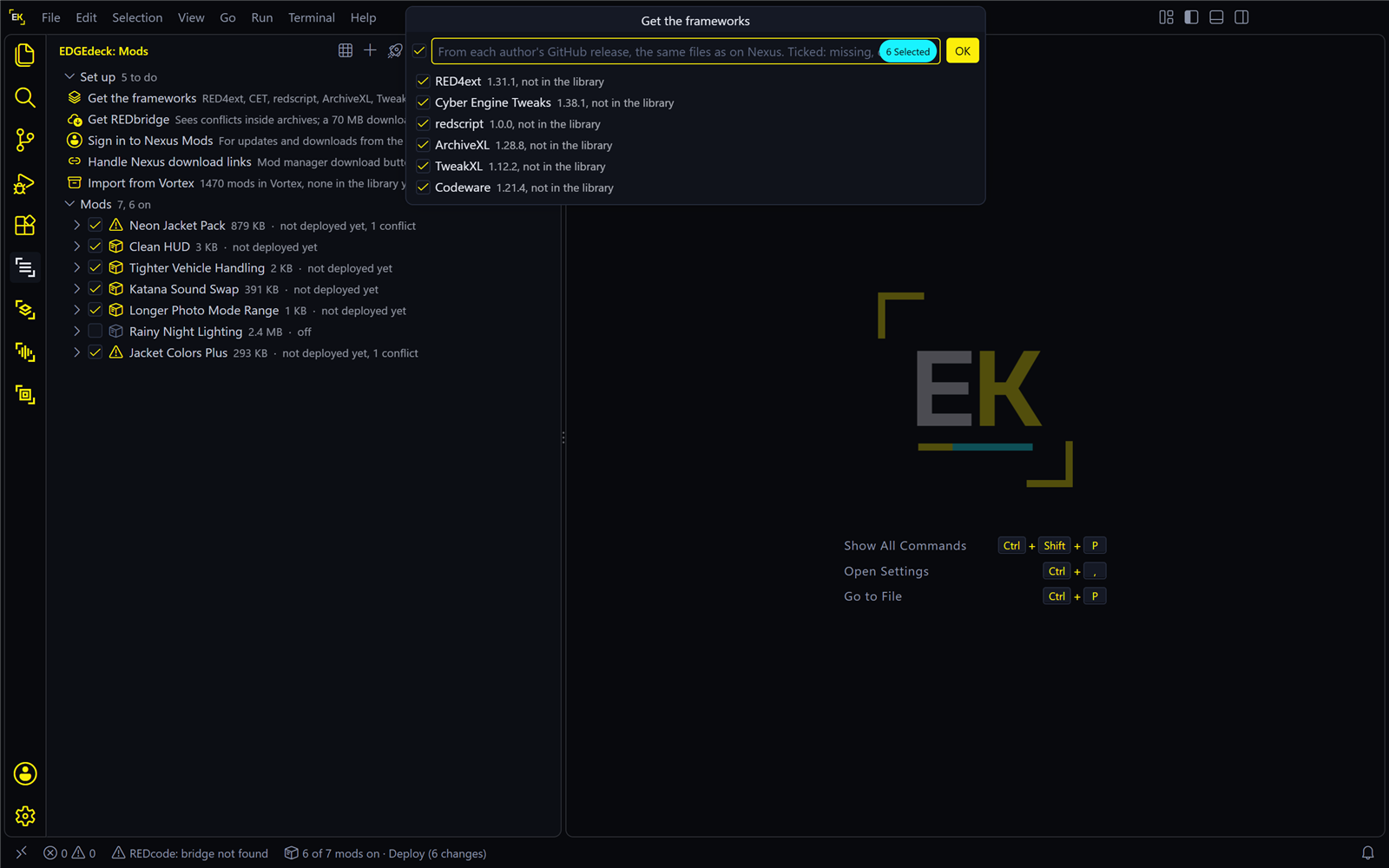
...menu and choose Get the frameworks…. - A list opens with the six: RED4ext, Cyber Engine Tweaks, redscript, ArchiveXL, TweakXL and Codeware. All are ticked. Press OK.
- Wait while they download. They come from each author’s own page on GitHub, so this step needs no Nexus account.
| What you should see | |
|---|---|
| A message | “Added RED4ext …, Cyber Engine Tweaks … Deploy to make it real.”, with a Deploy now button |
| The Mods view | A Frameworks group with six rows. Each has a ticked box and says not deployed yet |
| The status bar, at the bottom of the window | 6 of 6 mods on · Deploy (... changes) |
“Not deployed yet” is the important part. The frameworks are in your library, EDGEdeck’s own folder. Nothing is in the game so far.
2. Deploy
Deploy makes the game folder match your list: it puts in the files of every mod whose box is ticked.
- Make sure the game is closed.
- Press Deploy now on the message. If the message is gone, press Deploy in the Mods view’s title bar.
| What you should see | |
|---|---|
| A message | “Deployed: … files for 6 mods. 6 mods in the game now.”, with a View button that lists every file |
| Each row | deployed |
| The status bar | 6 of 6 mods on · deployed |
If EDGEdeck says Cyberpunk 2077 is running, quit the game and press The game is closed now. If it says Vortex manages this game folder, see Switch from Vortex.
3. Check the game starts
Press Run game, the play button in the Mods view’s title bar. The game starts with your mods.
You don’t have to load a save. If you reach the main menu, the frameworks are working. The first time, Cyber Engine Tweaks may show a small window asking you to choose a key for its own menu: pick any key you don’t use.
Quit the game before the next step.
| If | Do this |
|---|---|
| The game doesn’t start | Press Undo deploy in the ... menu and start the game again. If it starts now, see The game won’t start |
| Run game starts the wrong launcher | See the setting edgedeck.launch in Settings |
4. Pick a mod on Nexus
Go to Nexus Mods in your browser and sign in. For a first try, choose something small whose effect is easy to see, such as a new piece of clothing or a recolor.
On the mod’s page:
- Read the Requirements. Open the Description tab and look for the Requirements list. If it names only frameworks you now have, you’re set. If it names another mod, that mod has to be added too, the same way as this one.
- Open the Files tab.
- Under the main file, press Manual download, then Slow download if you have a free account.
Your browser saves a file, usually a .zip, in your Downloads folder. Don’t unpack it.
Later you can skip the browser’s Downloads folder: once EDGEdeck is signed in to Nexus, the Mod manager download button sends the file straight to EDGEdeck.
5. Add it
- Press Add mod in the Mods view’s title bar.
- Pick the file you downloaded.
- A box at the top of the window asks Name for this mod and suggests one. Press Enter to accept it.
EDGEdeck unpacks the file and works out where each of its files belongs in the game. If the download holds several options, EDGEdeck asks which one you want.
| What you should see | |
|---|---|
| A new row in the Mods group | Its box is ticked, and it says not deployed yet |
| The status bar | 7 of 7 mods on · Deploy (... changes) |
A new mod arrives switched on. To add a mod without using it yet, untick its box.
6. Deploy and play
- Press Deploy. The message now says “… for 1 mod. 7 mods in the game now.”
- Press Run game, load a save and look for the mod. Where to look depends on the mod, and its Nexus page says: a new item may be in a shop, in your wardrobe, or need a console command.
| If | Do this |
|---|---|
The mod says deployed but nothing shows in the game |
Read its Requirements again: a mod it needs is probably missing. Then see In the game |
| EDGEdeck said files were left out when you added it | The download had files EDGEdeck couldn’t place. See When EDGEdeck asks |
7. Take it out again
Quit the game first.
| To | Do this | What you should see |
|---|---|---|
| Take one mod out | Untick its box, then press Deploy | The row says off, still deployed after the untick, and off after the deploy |
| Put it back | Tick the box, then Deploy | deployed |
| Take everything out | Undo deploy, in the ... menu |
Every mod’s files leave the game. Your list stays as it is: Deploy brings them all back |
| Delete a mod for good | Right-click it, Remove, then Deploy | The row is gone, and so is its copy in the library |
Unticking a box never changes the game by itself. Nothing does, until you deploy.
What to try next
| Try | See |
|---|---|
| Sign in to Nexus, so Mod manager download and update checks work | Nexus Mods |
| Get REDbridge, so EDGEdeck sees conflicts inside archives | Getting REDbridge |
| Add a second mod that changes the same thing, and choose the winner | Conflicts and who wins |
| Save two sets of mods and switch between them | Loadouts |
| Look at what a deploy will change before you press it | Check before you deploy |
| Ask Claude to do all of this for you | Assistants |