Find and play sounds
Before you can change a sound you have to find it. EDGEwave’s Game Assets view lists the game’s sounds and nothing else, with a play button on every row. Its Sounds view lists your own work.
| On this page | |
|---|---|
| The three kinds of sound | Sound effects, voice lines, music |
| Browse Game Assets | The groups, and what each row can do |
| Filter | By words or a pattern, with a Try it |
| Open a sound in the editor | A game sound, a voice line, a file from your PC |
| A new, empty sound | Start from nothing |
| The Hear tab | Every recording of an event |
| Play in the Game | An event, on V, in the running game |
| Which event am I hearing? | From a sound in the game to its name |
| The Sounds view | Your sound documents and what you put into the project |
The three kinds of sound
| Group in Game Assets | What it holds | How it is arranged |
|---|---|---|
| Sound effects | Shots, doors, footsteps, interface clicks: every event that has recordings, about 20,000 | By event, the game’s name for something to play. Under each event are its variations, the recordings the game picks from. An event the game’s lists have no name for shows as event and a number, marked no name |
| Voice lines | Every spoken line, one .wem file each. English alone has about 100,000 |
Base game and Phantom Liberty, then each language whose voices you have installed, then the folders vo (normal speech), vo_holocall, vo_helmet and vo_rewinded |
| Music and streamed sounds | About 4,800 long sounds, mostly music, named by number only, with their sizes | One list |
Music cues, the events that start and stop the game’s music, are not in this view: they have no recording of their own to list. EDGEquest’s pickers and assistants search them through EDGEwave.
Browse Game Assets
Click EDGEwave’s icon in the activity bar. Game Assets is the lower view. Unfold a group with the small arrow beside it.
Big folders are grouped by the parts of the names, split at _. Under Sound effects you first see groups such as amb and w, each with a count such as 312 events. Voice lines unfold the same way: judy, then judy_q307, then the lines.
Move the mouse over a sound and buttons appear on its row. Right-click it for the same actions as a menu.
| Action | Where | Does |
|---|---|---|
| ▶ (Play) | On the row | Plays it at once, with no tab. An event plays one of its variations, picked at random as the game does. ▶ again stops it |
| + (Add to the Open Sound) | On the row | Adds it as a new track to the sound you have open in the editor. With none open, it offers Open in EDGEwave or Create a Sound |
| Open in EDGEwave (a page with an arrow) | On the row | Opens it in the editor as its own sound document. On an event, that is its first variation |
| Click the row, or Hear | The row; the right-click menu | Opens the Hear tab |
| Play in the Game | Right-click an event | Plays the event in the running game. See below |
| Copy Name | Right-click | An event’s name, for a quest or a script. A variation’s hash. A file’s game path |
| What you should see | |
|---|---|
| After ▶ | The status bar at the bottom of VS Code says EDGEwave: playing .... The first sound takes about a second to start, later ones start at once |
| After + | The status bar says EDGEwave: added to <name> as a new track, and the editor has one more lane |
▶ plays through Windows’ default sound output. If it can’t play a sound, a message says why and offers the Hear tab.
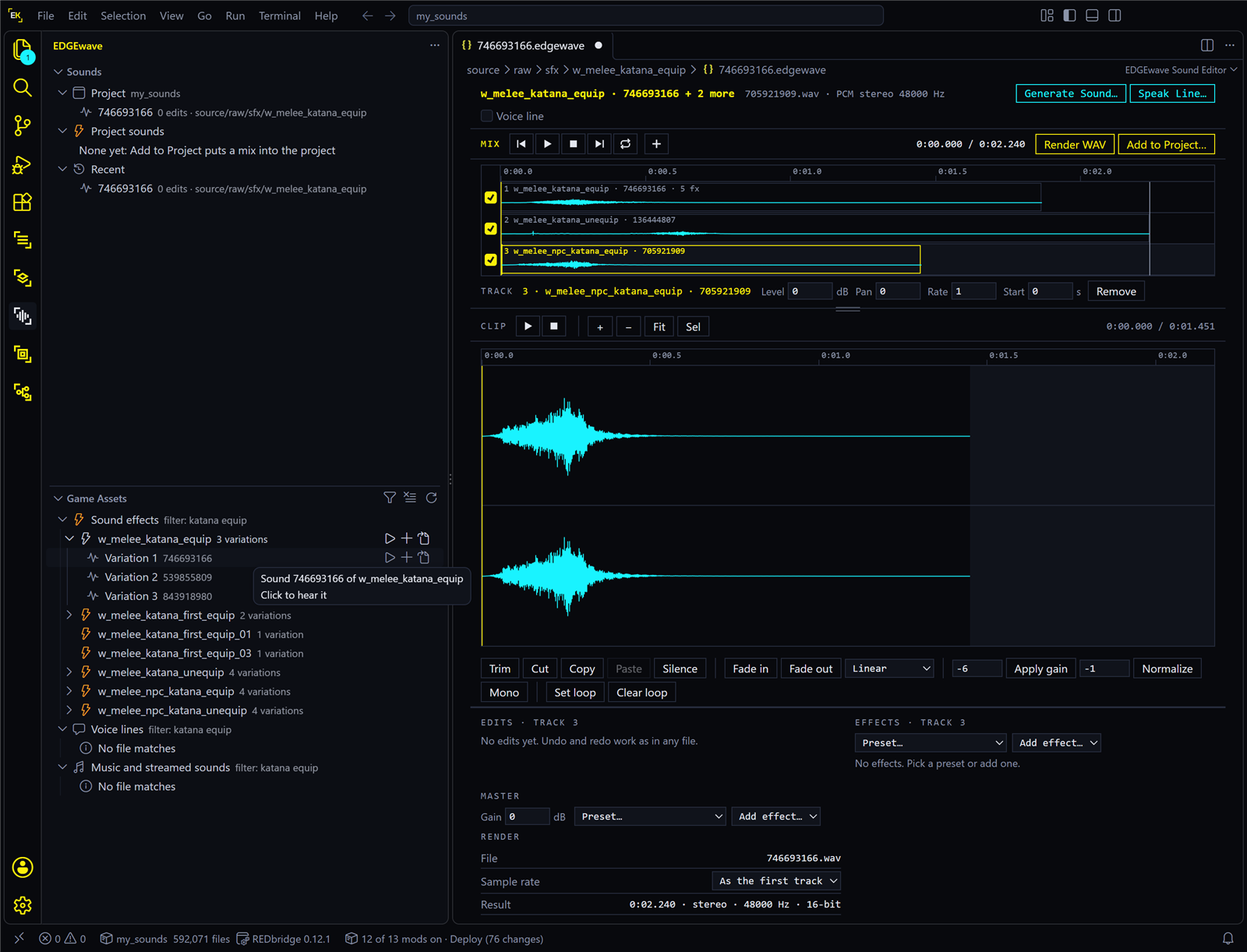
Filter
Press the funnel icon in the Game Assets title bar (Filter the Game’s Sounds), or run EDGEwave: Filter the Game’s Sounds from the command palette (Ctrl+Shift+P).
| You type | It finds |
|---|---|
Words, such as katana equip |
Names that contain every word |
A pattern with * (any text) and ? (any one character), such as *_q307_f_* |
Names that fit the pattern |
| A number | The event with that hash |
The filter covers all three groups at once. A search of the files stops at the first 5,000 matches, and the view says so when it does. Clear the Filter, beside the funnel while a filter is set, shows everything again.
Try it: Judy’s lines
- Press the funnel, type
judy q307and press Enter. - Unfold Voice lines.
- Move the mouse over a line and press ▶.
| What you should see | |
|---|---|
| After step 1 | Each group shows the filter beside its name. Sound effects says nothing matches |
| After step 2 | Judy’s lines from the quest q307, each with its size and folder |
| After step 3 | You hear the line |
A voice line’s file name ends in _f_ or _m_ and a long number. For V’s own lines that is the female or the male voice.
Open a sound in the editor
Opening a sound makes a sound document for it, a .edgewave file in your project, and opens that in EDGEwave’s editor. Opening the same sound again reopens the same document, with your edits.
| You have | Do this |
|---|---|
| A game sound effect | In Game Assets, press Open in EDGEwave on a variation |
| A game voice line | In Game Assets, unfold Voice lines, find the line (the filter helps) and press Open in EDGEwave. The editor marks it as a voice line, which the voice tools use |
| A sound playing in REDcode | REDcode’s sound list (REDcode: Browse Game Sounds) and its audio player both have an Open in EDGEwave button. See The game’s sound effects |
| A sound file on your PC | In the Sounds view’s title bar, press the folder icon (Open Sound in EDGEwave…) and pick the file. Or right-click a sound file in VS Code’s Explorer or REDcode’s Project view and choose Open Sound in EDGEwave…. It takes .wav, .ogg, .mp3, .flac, .opus and .wem |
To add a sound to a mix you already have open, use + instead: see Tracks.
A new, empty sound
A sound doesn’t have to start from the game.
- In the Sounds view’s title bar, press + (Create a Sound…).
- A save box opens in your project’s
source\raw\edgewave\soundsfolder, with the nameNew sound.edgewave. Change the name if you like and press Save.
| What you should see | |
|---|---|
| The editor | One empty lane, and a note: “No sound yet. Drop sound files here or on the lanes (hold Shift as you drop them), or use Add Sound (+), Generate Sound or Speak Line.” |
| The buttons | Render WAV and Add to Project… are greyed until the sound has a track |
Fill it by dropping your own sound files on it, with Add Sound, or with a voice tool. Edit and mix has the details.
The Hear tab
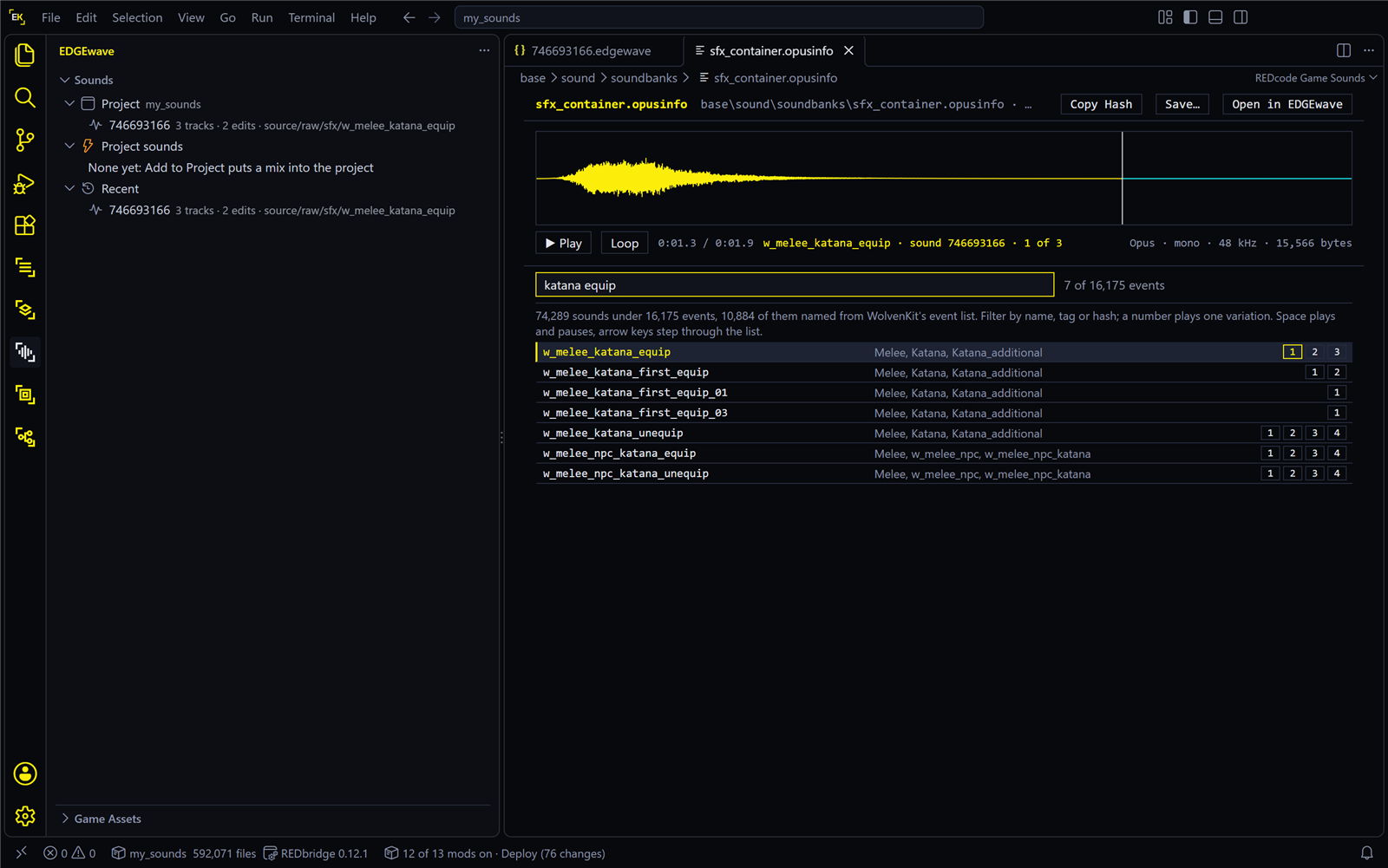
Clicking a sound’s row opens a tab titled Hear: … beside the editor. It plays one recording, and has a Play button for each recording of an event, plus Play a random one. Use it to compare an event’s variations.
The Hear tab plays the raw recordings. In the game, the same event can sound different: the game adds its own effects and distance.
Play in the Game
To hear an event as the game plays it, right-click it in Game Assets and choose Play in the Game.
| You need | |
|---|---|
| REDnode 0.43 or later in the game | It takes the request from VS Code |
| The game running, with a save loaded | The sound plays on V |
| What you should see | |
|---|---|
| With the game running | The status bar says EDGEwave: playing <event> in the game, and you hear it in the game, with the game’s own mix |
| Without it | A message saying to start the game with REDnode |
EDGEwave: Stop Sound, in the command palette, stops a long sound. The next sound you play in the game also stops the one before.
Two things to know. The game says nothing about a name it doesn’t know: you just hear nothing. And some events change the game’s own sound state: in testing, after about 25 events tried in a row, all game sound stopped. Opening the pause menu and going back brought it back.
Which event am I hearing?
Often you know the sound from playing, not its name. Two ways to get from one to the other:
- Guess and filter. Event names are built from plain words, such as
w_melee_katana_equipfor a weapon ordev_vending_machine_can_fallsfor a vending machine. Try the thing’s name in the filter and listen with ▶. - Trace it in the game. REDnode’s Sound Tracer lists every event the game plays, as it plays it. Do the thing in the game, read the name, and filter for it here.
One action can play several events at once. A can dropping from a vending machine is several sounds layered together, so changing one of them changes only part of what you hear.
The Sounds view
The upper view lists your own work, in up to three groups.
| Group | Shows | Click |
|---|---|---|
| Project | The sound documents in the open project, with the project’s name beside the heading. Each row shows its tracks, its edits and its folder | Opens the document in the editor |
| Project sounds | What you put into the project with Add to Project. Named sounds say how they came (a new sound, or one that replaces or silences a game event), with their kind and length. Overrides and REDnode package sounds are listed too | A named sound opens the Hear tab. An override or a REDnode sound opens its mix |
| Recent | The last 20 sound documents you opened, from any folder | Opens the document |
| Button | Where | Does |
|---|---|---|
| + | Title bar | Create a Sound… |
| Folder icon | Title bar | Open Sound in EDGEwave…, for a sound file on your PC |
| Refresh | Title bar | Reads the lists again |
| Copy Name | A named sound’s row, or right-click | The name a quest, scene or script plays it by |
| Show the WAV | Right-click a named sound | Its WAV file in the project |
| ×, Clear Recent | A Recent row; the Recent heading | Takes one, or all, off the Recent list. The files stay on disk |
Project is filled only when the project’s own folder is open in VS Code, the folder with the .cpmodproj file directly in it. A mix you saved somewhere else shows under Recent only. If you put such a mix into the project as an override, the override is in the project and works, but Project sounds does not list it yet.