The scene editor
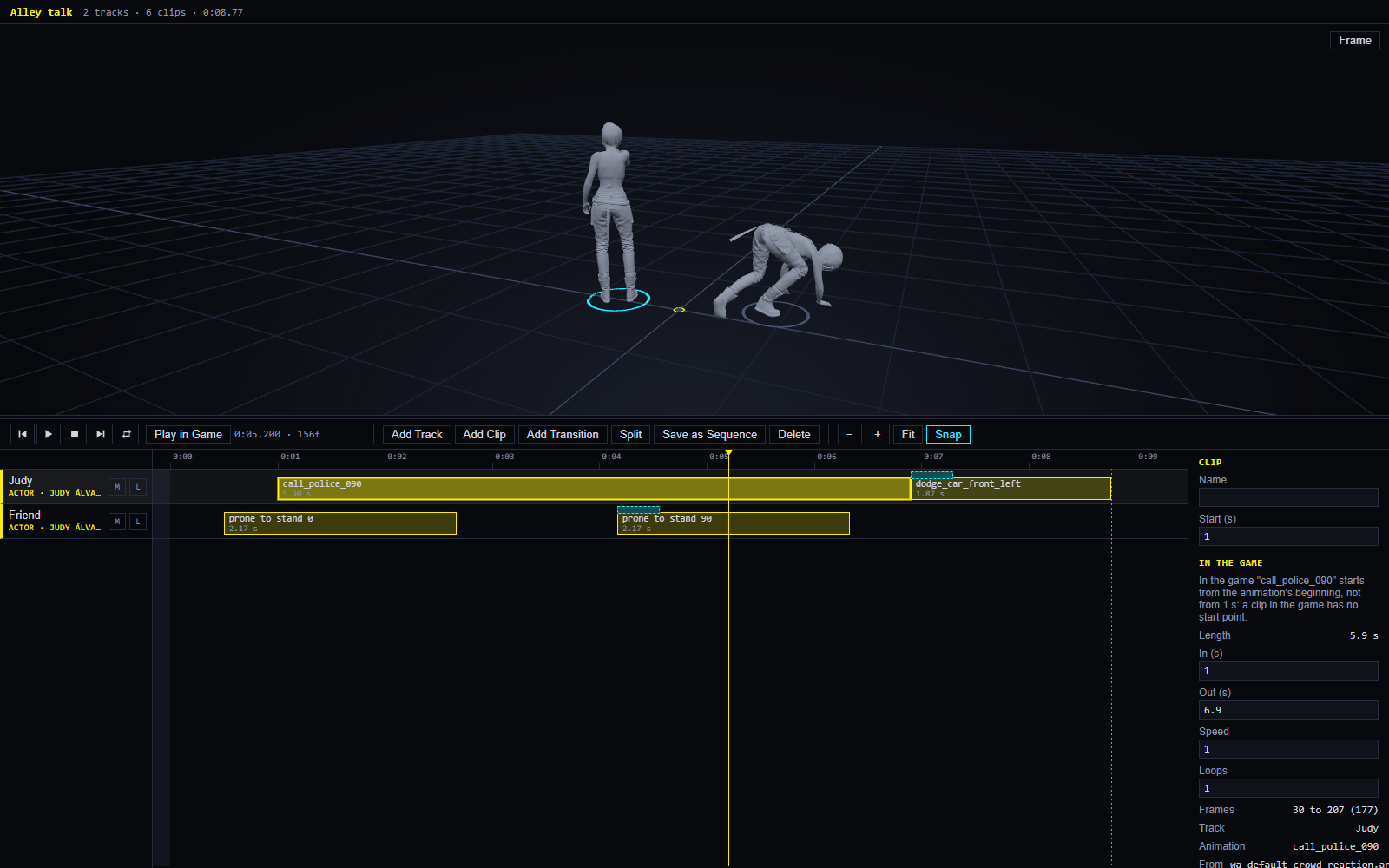
A scene opens in EDGEdir’s own editor. From top to bottom it has the 3D preview, the transport and toolbar, and the timeline with the inspector at its right.
| On this page | |
|---|---|
| Tracks | The lanes, and what each kind holds |
| Clips | Adding, moving, trimming, splitting, copying |
| An animation clip’s numbers | In, Out, Speed, Loops |
| The playhead and playing | The transport |
| The inspector | What it shows for a clip, a track and the scene |
| The Desk | Where scenes are kept |
| The scene’s file |
Tracks
Add Track adds a lane. Each has a kind:
| Kind | Holds | In this version |
|---|---|---|
| Actor | One person: animation clips, transitions between them, and sequence blocks | Plays in the preview and in the game |
| Weather | Weather clips. One weather track at most | Weather: named and tinted in the preview, set in the game |
| Audio, Camera, Script, Video, AI | Named blocks | Placeholders for later versions: they hold named blocks you can lay out, and do nothing yet |
Click a lane’s name at the left to select the track. Its M button mutes it: a muted track is left out of the game. L locks it against changes. Remove Track is in the inspector; Undo brings a track back with its clips.
Clips
| To | Do |
|---|---|
| Add an animation | + on an animation in the Animations view, with an actor’s track selected: see Actors and animations |
| Add a named block | Add Clip, on any track. On an actor’s track it is a block with no animation yet |
| Select | Click a clip. Ctrl+click adds to the selection; Ctrl+A selects all; Esc clears |
| Move | Drag it along the lane, or to another lane of the same kind. Clips on one lane never overlap: a dragged clip stops at its neighbours |
| Trim | Drag a clip’s left or right edge |
| Split | Put the playhead inside a clip and press S, or Split |
| Copy, cut, paste, duplicate | Ctrl+C, Ctrl+X, Ctrl+V, Ctrl+D |
| Delete | Delete |
| Undo, redo | Ctrl+Z, Ctrl+Y: every change is one step |
With Snap on, a dragged clip or edge snaps to the playhead and to other clips’ edges. Times are kept to whole frames; a scene runs at 30 frames a second.
− and + zoom the timeline; Fit shows the whole scene.
An animation clip’s numbers
Select an animation clip to see these in the inspector:
| Field | Means |
|---|---|
| Start (s) | Where the clip begins on the timeline |
| In (s), Out (s) | The part of the animation that is played. Dragging an edge changes these, and stops at the animation’s own ends |
| Speed | 1 is the animation’s own speed; 2 plays it twice as fast, so the clip is half as long |
| Loops | How many times the part is played, one after another. The lane marks where each repeat starts |
A change that would not fit, such as more loops than there is room before the next clip, is refused with a message, and the number goes back.
The game cannot do all of this yet. Under In the game the inspector says so for the selected clip: for instance, that the game starts a clip from the animation’s beginning whatever In says. See what the game will not match.
The playhead and playing
The playhead is the vertical line across the lanes. Click or drag on the ruler to move it.
| Button or key | Does |
|---|---|
| Play, or Space | Plays from the playhead in real time; again to stop |
| Stop | Stops and goes back to where play began |
| The two edge buttons, or Ctrl+← and Ctrl+→ | Jump to the previous or next clip edge |
| ←, → | One frame back or forward; with Shift, ten |
| Home, End | The scene’s start and end |
| Loop | Play starts again at the scene’s end |
| Play in Game | Plays the scene in the running game: see Playing in the game |
The inspector
The inspector shows what is selected, and below that the scene itself.
| Selected | Shows |
|---|---|
| A clip | Its name, start and length; for an animation its numbers and which animation it plays; In the game when the game will differ |
| A transition | Its method and ease, and which two clips it joins: Transitions |
| A track | Its name; for an actor track the actor, their record, appearance and rig, their mark, Change Actor… and Remove Track |
| Always, below | Scene: name, length, frame rate. Set: the stage it plays on (Sets). Pins: its named places (Adjusting and pins) |
The Desk
The Desk is where EDGEdir keeps scenes you are working on. It is a folder on your PC, %LOCALAPPDATA%\EDGEdir\desk, and each scene is a small folder there.
| In the Desk view | |
|---|---|
| New Scene | Makes a scene and opens it |
| Click a scene | Opens it |
| Right-click a scene | Rename…, Delete (to the Recycle Bin), Reveal in File Explorer |
| Sequences | The sequences you saved, under their own heading |
| Recent | Scenes you opened from somewhere else on the PC |
EDGE Director in the game lists the same Desk, so a scene made here can be opened there.
The scene’s file
A scene is one text file ending in .edgedir: readable JSON that names the tracks, the clips and the actors. It names animations by where they are in the game; it holds no game data itself, so it is small and safe to share. If a scene’s file is ever damaged, the editor says what is wrong and offers Open as Text beside it.
Two tools can change a scene: this editor and EDGE Director in the game. A change made in the game shows in the open editor by itself. While a scene has unsaved changes here, EDGE Director will play it but not change it, so neither overwrites the other.