The Library
The Desk is for work in hand. The EDGE Library is for keeping: one folder of your own, outside any project, that every EDGE tool shares. A prop in the Library has its game files already made, so it goes into any mod project in seconds. The Library is optional: the Desk and Add to Project work the same without it.
What the Library is across all the tools: The EDGE Library.
| On this page | |
|---|---|
| Set it up | Once, for every EDGE tool |
| Add a prop | Add to Library |
| The Library view | Folders, props, and models kept for later |
| Into a project | A copy, in seconds |
| Change a prop | Edit on the Desk, then update |
| Refresh a project | Bring newer versions in |
Set it up
If no EDGE tool has set the Library up on this PC, the Library view shows Set Up the Library…. Press it and choose:
| Choice | |
|---|---|
| Documents\EDGE Library | The suggested place |
| Choose a folder… | Anywhere outside the game’s folder, such as a bigger drive |
The folder is shared: EDGEbuilder, EDGEhack and REDcode use the same one. If another tool set it up already, EDGEfab just shows it. To move it later: ... at the top of the Library view, Set the Library Folder….
Add a prop
Right-click a prop on the Desk, Add to Library…. The first time, EDGEfab asks three things:
| Asked | What to answer | Asked again? |
|---|---|---|
| Your own folder in the game’s files | A short name of your own, such as your modder name, in lowercase: nightowl. Library props get their game files under nightowl\props\<name>\, the same in every mod |
No. Change it with Set Your Folder in Game Paths… |
| Which Library folder? | A folder to keep it in. The folders are yours to name, such as Production/Props. New folder… makes one |
Yes, with the last one first |
| Use the game path? | In <folder> keeps it where you said. In folders matching its game path adds nightowl/props/ under it, so the Library browses like the game’s files |
Yes, with your last choice first |
Then EDGEfab builds the prop’s game files into the Library item, as Add to Project does. That takes a minute or two.
| Good to know | |
|---|---|
| The prop needs a size | Set Size first if the Desk says the size is unknown |
| Its name must be free | Two Library props can’t share a game name. Rename one |
| The Desk copy stays | It now shows In the Library, version 1 |
The Library view
| It shows | |
|---|---|
| Your folders | As they are on disk |
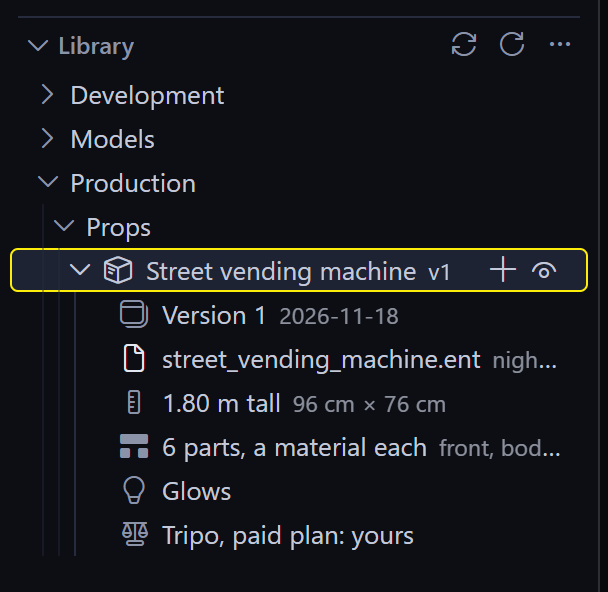
| Props | Each opens to its version, size and parts |
| Other tools’ items | Scenes, quickhacks and game files set aside by other EDGE tools. EDGEfab lists them but doesn’t open them |
| Model files | .glb, .fbx and .blend files you keep to convert later. On a .glb: Make a Prop |
On a prop: Add to Project, Open in 3D, Edit on the Desk and Reveal in File Explorer.
You can also manage the folder in Windows’ File Explorer: move, rename and delete folders as you like. Press Refresh the Library afterwards.
Into a project
Right-click a Library prop, Add to Project. Its ready game files are copied into your open project. Nothing is remade, so it takes seconds.
The project keeps a note of where each Library prop came from and which version it has, in source\library.json. That note is what Refresh reads.
Change a prop
- In the Library view, right-click the prop, Edit on the Desk. A copy goes back onto the Desk.
- Change it: its size, its glow, even a new model from one of its pictures.
- On the Desk, Add to Library… again. EDGEfab asks whether to update it and says which version this makes. Press Update It.
The Library’s prop is updated where it is, one version up. It stays the same prop, so projects that took it can find the newer version.
If the prop is already on the Desk, Edit on the Desk asks before replacing the Desk’s copy: the Desk’s may have changes that aren’t in the Library yet.
Refresh a project
Press Refresh Project from Library… at the top of the Library view. EDGEfab looks at the props your open project took from the Library:
| It finds | It says |
|---|---|
| Newer versions in the Library | A list, each with its versions. Tick the ones to copy in |
| Nothing newer | “props from the Library are up to date” |
| A prop that is gone from the Library | It names it, and leaves the project’s copy alone |
Ticked props replace the project’s copies. Then pack the project again.
Next: Assistants.