Transitions and sequences
Two animations placed end to end jump at the join: the body snaps from the last pose of one to the first pose of the next. A transition removes the jump. A sequence stores a run of clips with their transitions, so you build a movement once and use it again.
| On this page | |
|---|---|
| Add a transition | |
| Method and ease | Blend, Inertial |
| What the game does at a join | |
| Sequences | Save, reuse, edit, linked blocks |
Add a transition
Put the playhead near the join of two animation clips on one actor’s track and click Add Transition. A short bar appears over the join. Drag its edges to make it longer or shorter, or drag it along the lane.
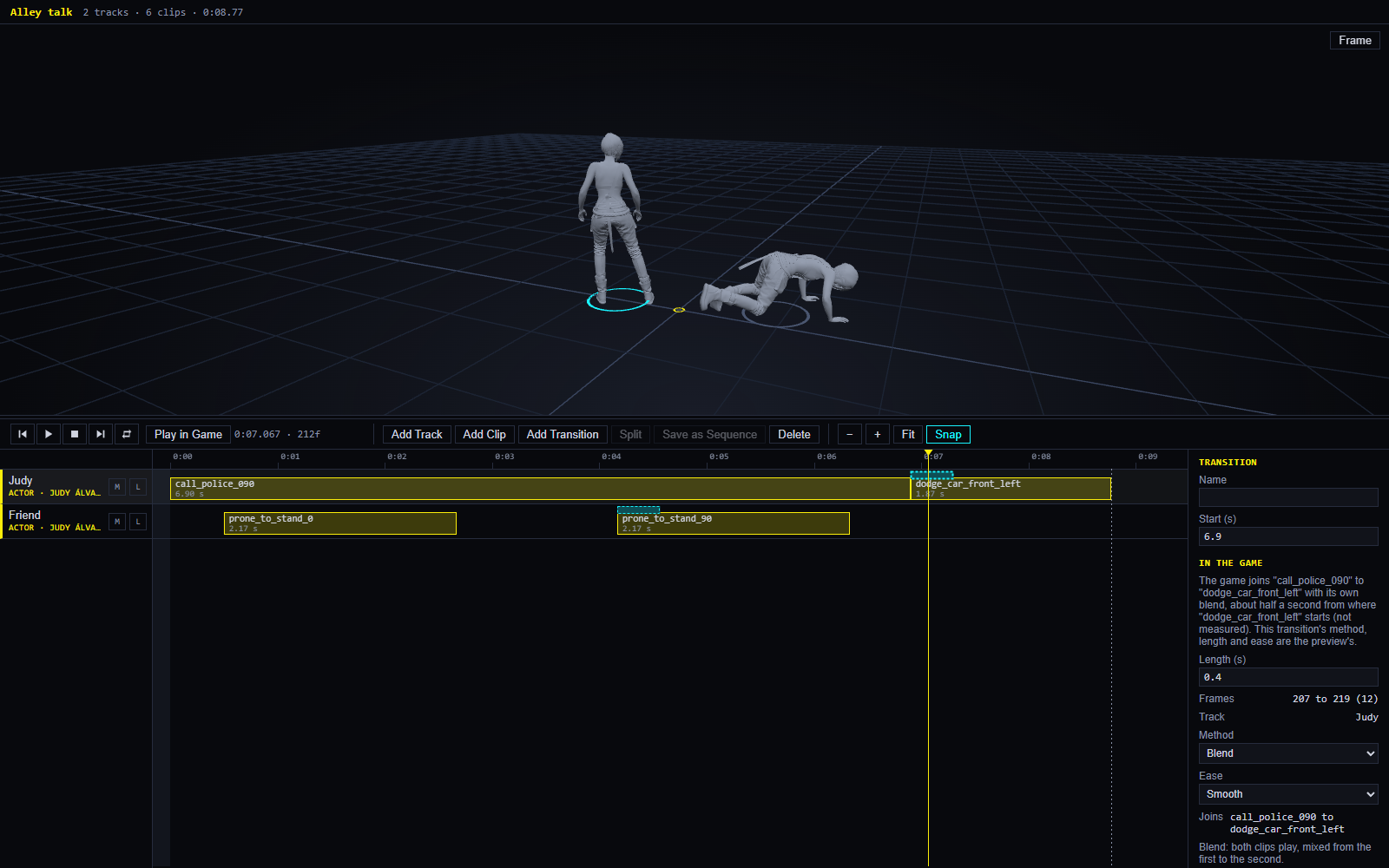
A transition joins the clip that plays before it to the next clip that starts inside it. The inspector’s Joins line names both. A transition placed anywhere but at the second clip’s start gets a yellow bar, and the inspector says Preview only: the game makes its own join where the second clip starts, so it cannot match a transition placed elsewhere.
Method and ease
| Method | What it does | Good for |
|---|---|---|
| Blend | Both clips play while the bar lasts, mixed from the first to the second | Two movements that are alike, such as two idles |
| Inertial | The second clip plays whole from its start; the difference between the two poses fades away over the bar | A change of movement, where mixing would smear both |
| AI | Reserved for a provider that makes the in-between movement. None exists yet; it previews as nothing |
Ease shapes the change over the bar: Smooth starts and ends gently, Linear is even, Ease in starts gently and Ease out ends gently.
Try both methods on a join and play it. Which looks better depends on the two animations.
What the game does at a join
In the game, the join is the game’s own. When EDGE Director moves an actor to their next clip, the game blends into it by itself, starting where the next clip starts. So a transition’s method, length and ease are what you see in the preview; the game does something similar, not the same. How the game’s blend compares has not been measured yet.
The inspector says this under In the game for each transition. A join with no transition cuts in the preview, and still blends in the game.
Sequences
A sequence is a run of clips, with the transitions between them, stored by itself.
| To | Do |
|---|---|
| Save one | Select the clips on one actor’s track and click Save as Sequence. Name it, and choose whether the scene keeps the clips or takes one block in their place |
| Find it | The Desk lists sequences under Sequences |
| Use it | Select an actor’s track, put the playhead where it should start, and click the + on the sequence. One block lands on the lane |
| Use it on someone else | Any actor with the same rig can play it: see the rig rule |
| Edit it | Double-click a block, select it and choose Open Sequence, or click the sequence on the Desk. It opens in its own tab with one lane and a plain base body |
| Take it apart | Select a block and choose Unpack: the block becomes its clips and transitions again, with no link to the sequence |
A block is as long as its clips, and is not trimmed or split.
Linked blocks
A block stays linked to its sequence and keeps a copy of it. When you change the sequence and save, scenes that use it take the change when they are opened, or at once if they are open, as one step that Undo takes back. The inspector says how a block stands:
| It says | Means |
|---|---|
| Linked to the sequence on the Desk | The block is the sequence as it is now |
| The sequence has changed since this copy was taken | The block plays its older copy until the scene is opened again or the sequence is saved |
| The sequence has changed, and its new length does not fit here | The block plays its older copy. Make room after it, then open the scene again |
| The sequence is not on this PC’s Desk | The block keeps its copy and still plays |
In the game a sequence block is simply its clips.