Your first quickhack
In this walk-through you make Static Bloom: a new quickhack that sits beside the game’s Overheat. It costs 2 more RAM, and it poisons as well as burns. You click through it yourself, with no code. The game’s own Overheat stays exactly as it is.
| Time | About twenty minutes, part of it the game starting |
| Before you start | EDGEhack and REDcode are installed, and a project is open in REDcode (Install and set up). The game is closed |
| In the game | The frameworks TweakXL, ArchiveXL and redscript. REDnode, whose Console gives V the quickhack in step 5 and which step 6 needs. See What each feature needs |
| Never used EDGEhack? | Do Change a game quickhack first. It takes five minutes and explains the Numbers table |
| On this page | |
|---|---|
| 1. Clone and Modify | A copy of Overheat under a new name |
| 2. Raise its RAM | By 2, on every tier |
| 3. Add Contagion’s poison | An effect borrowed from another quickhack |
| 4. Look at Get it | How players will find it |
| 5. Play it | Pack, install, and use it on an enemy |
| 6. Change it while you play | Try Live |
| Take it out again, What next |
1. Clone and Modify
Clone and Modify makes a new quickhack that starts as a copy of one of the game’s.
- In EDGEhack’s Quickhacks view, open People, then Damage Hack.
- Right-click Overheat and choose Clone and Modify….
- Type
Static Bloomand press Enter.
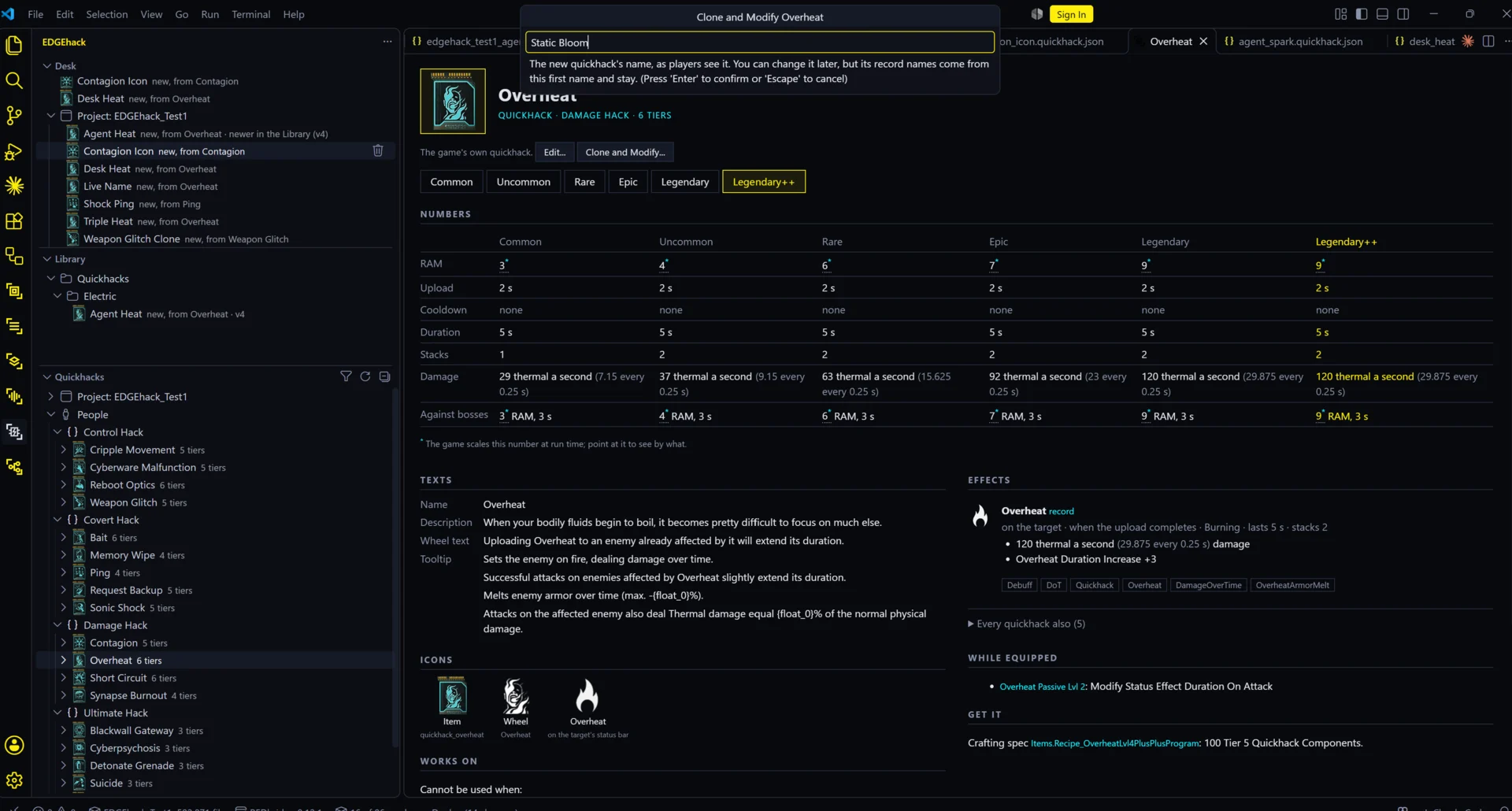
| What you should see | |
|---|---|
| A new tab | The editor, titled Static Bloom, with “A new quickhack, started from the game’s Overheat, which it leaves as it is.” |
| A message in the corner | The files EDGEhack added to your project, with an Open button |
| In the Desk view | A Project group with Static Bloom, marked new, from Overheat |
EDGEhack saved the new quickhack as a small file in your project (its document) and wrote the mod files the game needs beside it.
Choose the name with care. The game finds every item by an internal id, and EDGEhack builds the new quickhack’s ids from your project’s name and this first name. In a project called my_hacks, the Rare tier’s id is Items.EDGEhack_my_hacks_static_bloom_OverheatLvl2Program. Saved games and vendors find the quickhack by those ids, so EDGEhack never changes them. The name players see is separate: change it any time in Texts, on the page.
2. Raise its RAM
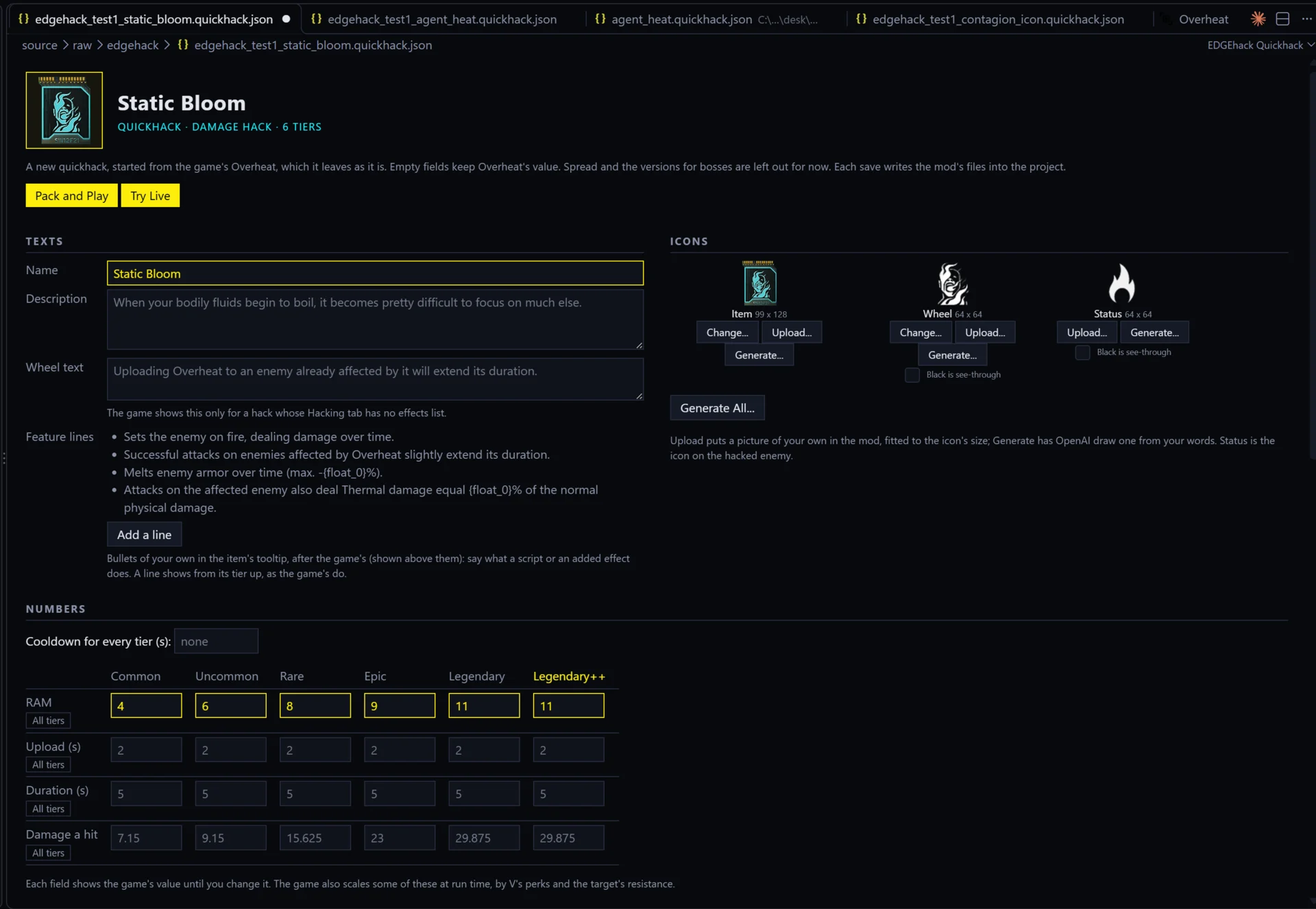
The Numbers table has a column for each tier, Common to Legendary++, and a row for each number. An empty field keeps Overheat’s value, shown in grey.
- Click Rare at the top of its column, to select that tier.
- In the RAM row, click the Rare field and type a number 2 more than the grey one. If the grey number is 8, type 10.
- Press All tiers on the RAM row. Every other tier also goes up by 2 from its own value.
- Save with
Ctrl+S.
You should see every RAM field filled, and the line under the title say “Saved:” with the file it wrote: a TweakXL file under source\resources\r6\tweaks in your project.
3. Add Contagion’s poison
- Scroll to Added effects and press Add Effect….
- On the Copy Existing tab, click Contagion, then its poison in the list below.
- Save.
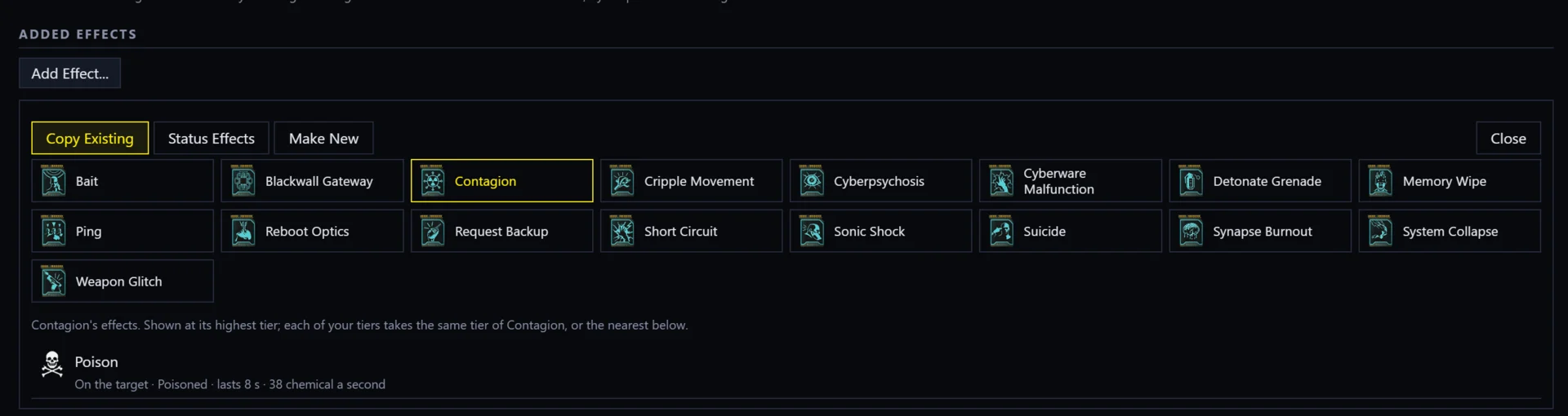
You should see a card for the poison under Added effects, saying it comes from Contagion and follows its tiers. So Static Bloom’s Rare tier gets the poison of Contagion’s Rare tier, and its Epic tier the stronger Epic poison.
Grey notes near the top of the page tell you two things about this pair:
- Machines are spared. EDGEhack stops the added poison from hurting drones, androids and mechs. The game’s own Contagion can’t be used on machines either.
- Burn and poison can cancel. If V also carries the game’s Contagion at Epic or better, the game ends the poison when the target is hit while burning. That is the game’s rule, not a fault in your quickhack.
4. Look at Get it
Scroll to Get it. It shows how players will find the selected tier, and you can click another tier at the top of the Numbers table to see that one.
A new quickhack is sold and crafted like the game quickhack you cloned it from, tier for tier. Where a vendor sells Overheat’s Rare tier, the same vendor sells Static Bloom’s. Where the game sells a crafting recipe for a tier, yours gets its own recipe.
Under each tier is a line for testing, such as:
await game.player.addItem("Items.EDGEhack_my_hacks_static_bloom_OverheatLvl2Program")
Yours has your project’s name in it, so copy it from the page, not from here. Lvl2 is the Rare tier. The line puts that tier in V’s backpack without buying it. It works only once Static Bloom is in the game, which is the next step.
5. Play it
- Make sure the game is closed.
- On the page, press Pack and Play. REDcode packs the project into a mod and installs it, through EDGEdeck if you have it.
- Start the game and load a save.
- Press
F10to open REDnode’s launcher and switch on Console. - Copy the Rare tier’s line from Get it, paste it into the Console and press Enter.
- Close the launcher with
F10. In the cyberdeck screen, slot Static Bloom. - Scan an enemy and upload Static Bloom.
| What you should see | |
|---|---|
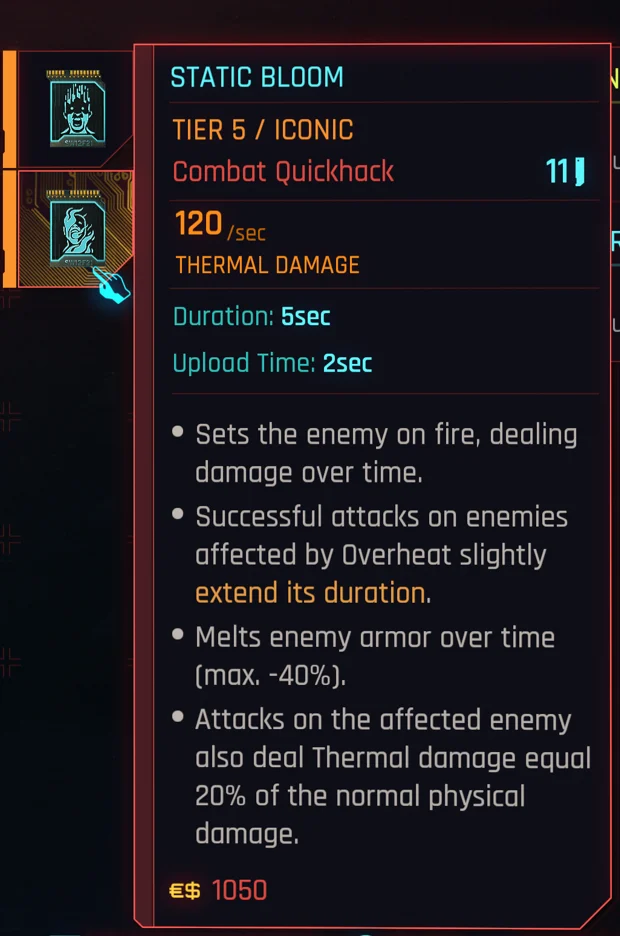
| In V’s backpack | Static Bloom, with Overheat’s icon and its own name |
| On its card | A RAM cost 2 higher than Overheat’s Rare tier |
| On the enemy | The burn, and the poison beside it |
Not what you see? See In the game.
6. Change it while you play
Try Live sends a change into the running game, so you don’t restart for every number. Keep the game running with your save loaded.
- In VS Code, on Static Bloom’s page, click Rare at the top of its column.
- Press Try Live.
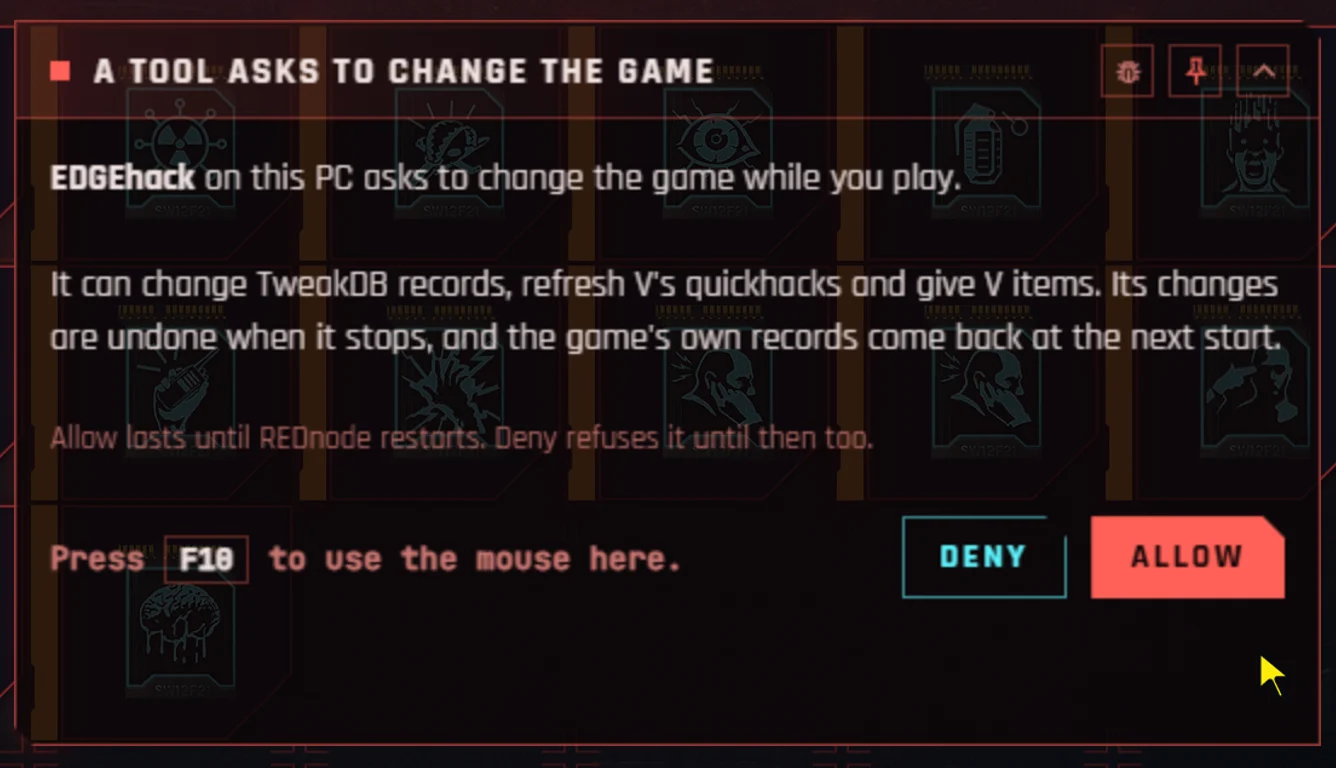
- In the game, REDnode shows an Editor request window for EDGEhack. Press Allow. It asks once per game session. If you don’t see the window, press
F10. - Back on the page, change the Rare tier’s RAM to another number and save.
- In the game, scan an enemy again.
- Press Stop on the page when you are done.
| What you should see | |
|---|---|
| After step 3 | The line under the title: “Trying it live”, how many changes are in the game, and that the Rare tier is in V’s backpack |
| After step 5 | Static Bloom’s new RAM cost in the quickhack list |
| After step 6 | The game back as the installed mod has it |
Try Live shows numbers and effects. It can’t show a new name or new icons: those arrive with Pack and Play and a game restart. More in Try Live and Pack and Play.
When you like the numbers, close the game and press Pack and Play again, so the installed mod has them.
Take it out again
| To remove | Do this |
|---|---|
| The mod from the game | In REDcode’s Project view, open the ... menu and choose Uninstall: see Uninstall |
| Static Bloom from the project | In the Desk view’s Project group, hover it and click the trash can (Remove from Project…). A list shows what goes to the Recycle Bin |
What the game does with a Static Bloom that V still carries in a save, once the mod is gone, has not been tested. To be safe, sell or drop it before you uninstall.
What next
- Change its name, description and icons, or add a line to its tooltip: The editor.
- Make it work only on some enemies, or do more when it lands: Scripts.
- Keep it to use in other mods: The Desk and the Library.
- Ask Claude to make the next one: Assistants.